

If your team keeps its credentials in 1Password, using one in Bruno has meant copying it over by hand. That leaves a second copy of the secret sitting in your collection, where it can be shared or committed by accident. It also means that every rotation sends you back to copy and paste.
Starting with Bruno v4.4.0, you can skip all of that. Bruno has a built-in 1Password integration: your collection stores a pointer to the secret, Bruno fetches the secret, keeps it in memory and disposes it on app close - the value is never written to the disk
Here's the whole setup. It takes about two minutes.
Table of Contents
What you need
- Bruno v4.4.0 or above, on an Ultimate or Enterprise plan.
- A 1Password Service Account token with read access to the vault that holds your secrets. Your 1Password admin can create one under Developer → Service accounts.
That's the entire shopping list.
Step 1: Connect 1Password from your environment
Open your environment, go to the External Secrets tab, pick 1Password, and click Save and continue.
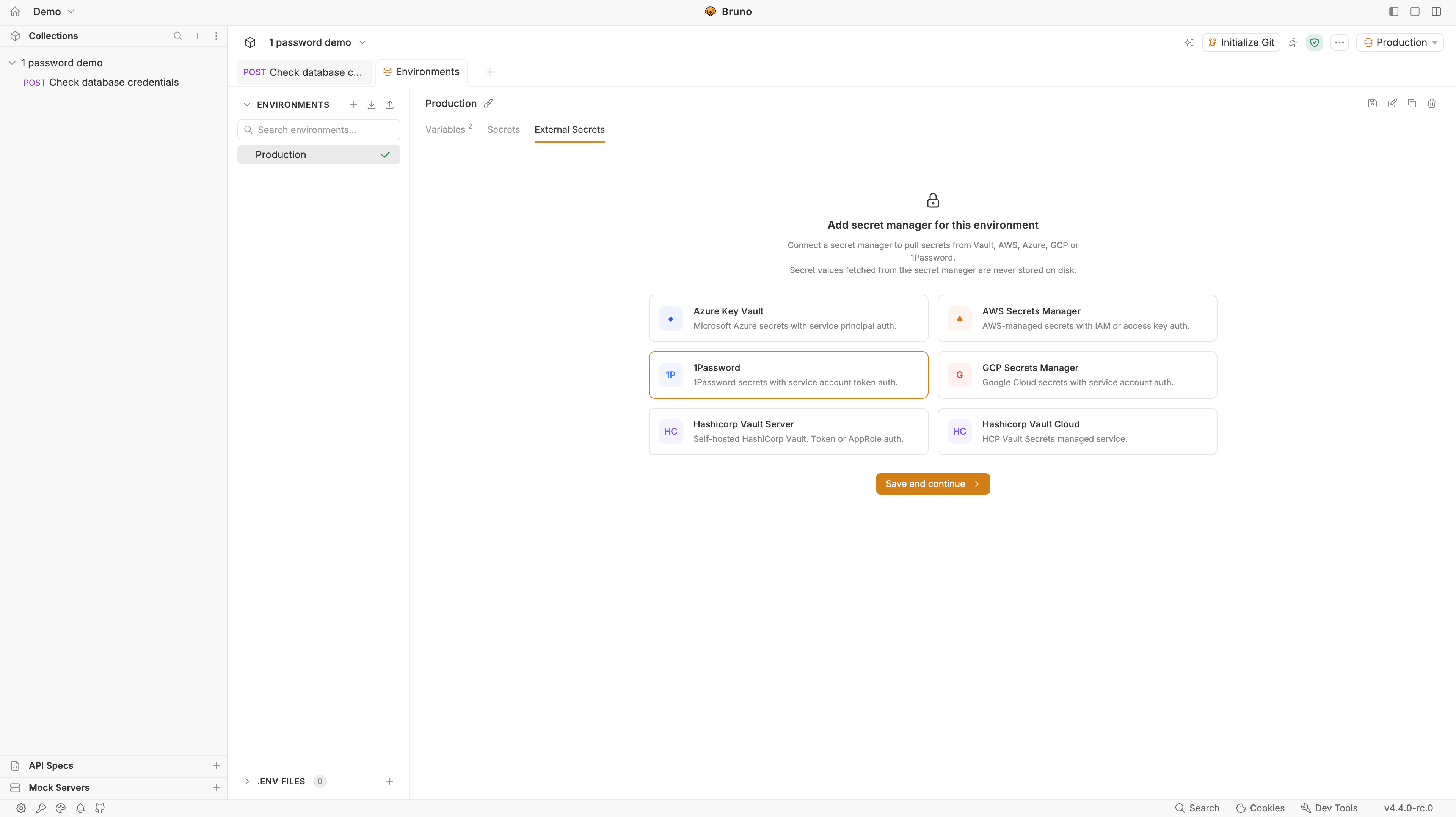
Now open the account dropdown and click Add new account. Give it a name, paste your Service Account token, and click Test Connection. When it passes, click Add.
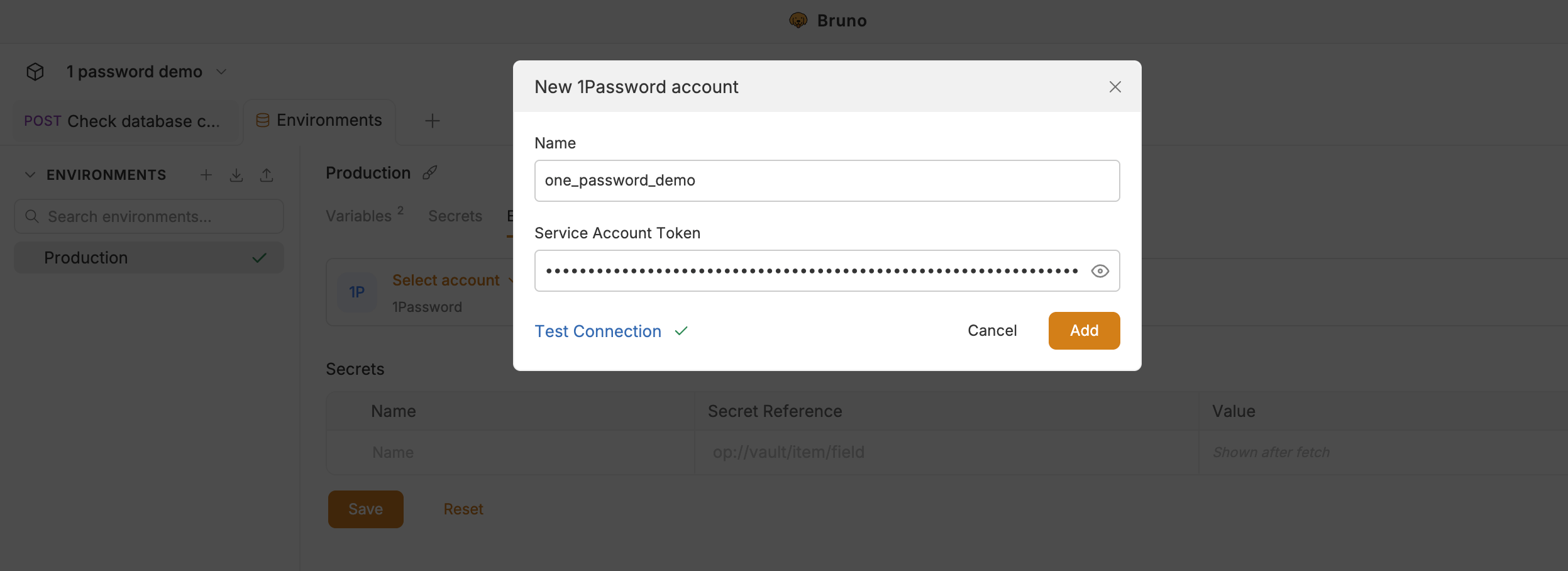
You only do this once. The token is encrypted and stored in your app preferences, not in the collection, so it never travels with your files.
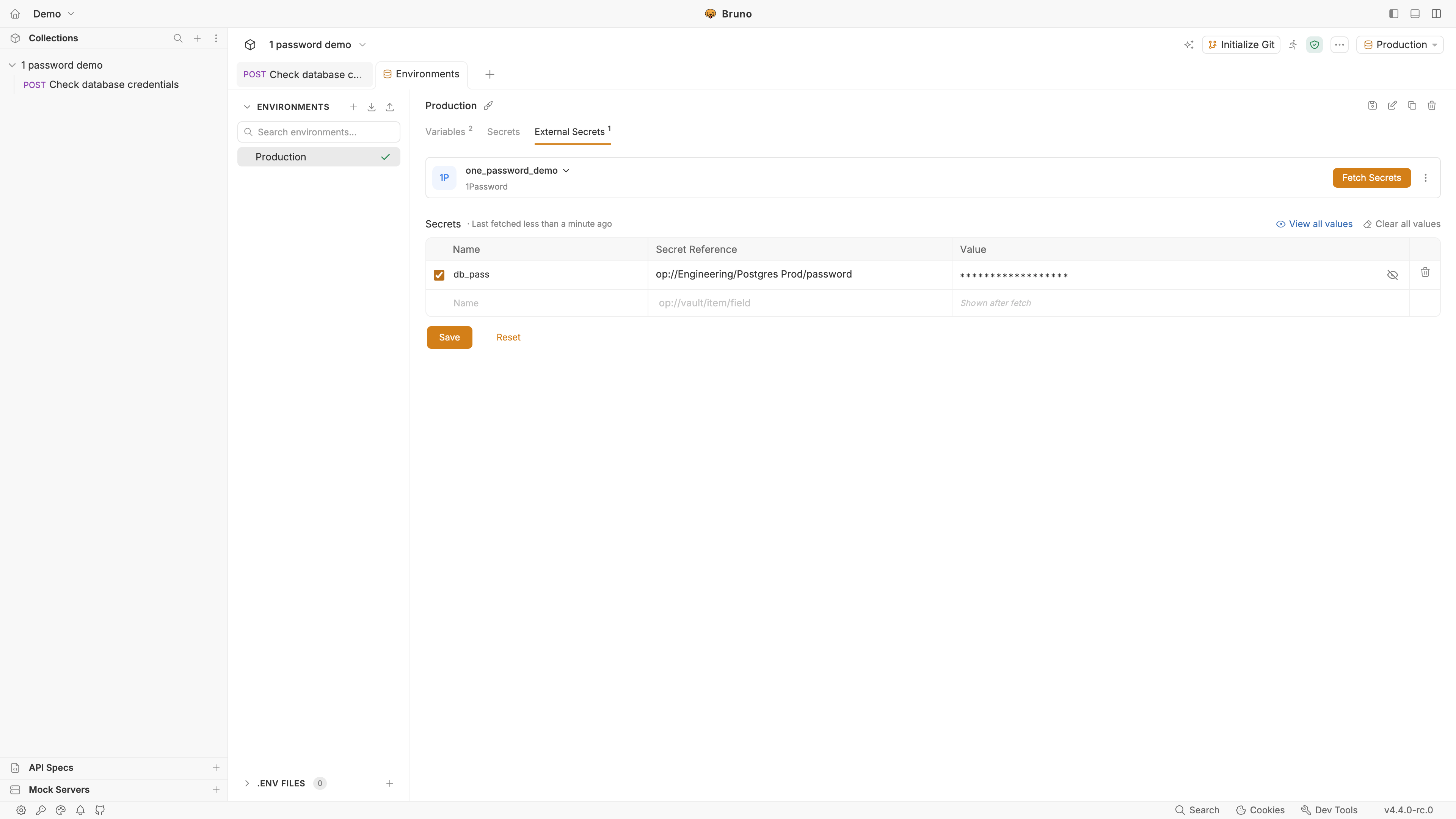
Step 2: Tell Bruno which secret you want
Add a row with two things:
- Name: the variable you'll use in requests, for example
db_pass. - Secret Reference: the secret's address in 1Password.
- Fetch Secrets: You can click on "Fetch Secrets" button to fetch secret or click on save button and Bruno will fetch it at runtime(during the execution of request).
A secret reference is just three names in a row: the vault, the item, and the field.
op://Engineering/Postgres Prod/password
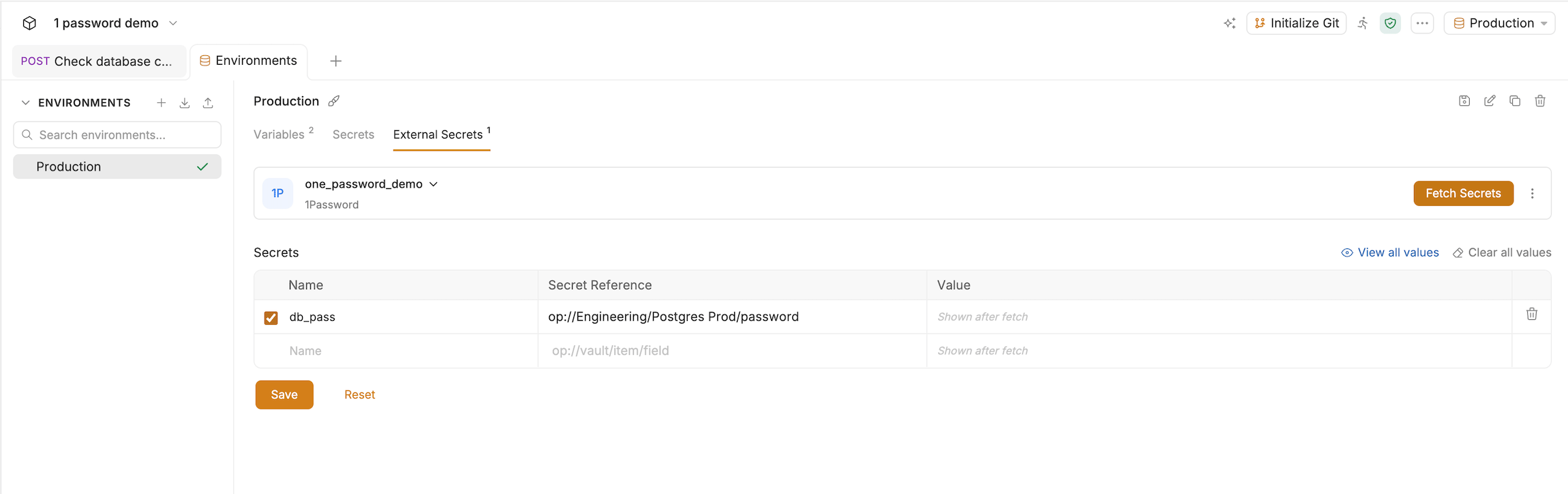
Hit Save. If you peek at the environment file now, this is all that's in it:
name: Production
externalSecrets:
  type: one-password
  variables:
    - name: db_pass
      secretReference: op://Engineering/Postgres Prod/password
A pointer, and nothing else. Commit it with a clear conscience.
Step 3: Use it like any other variable
Drop {{db_pass}} wherever you need it: the URL, a header, the body, or auth.
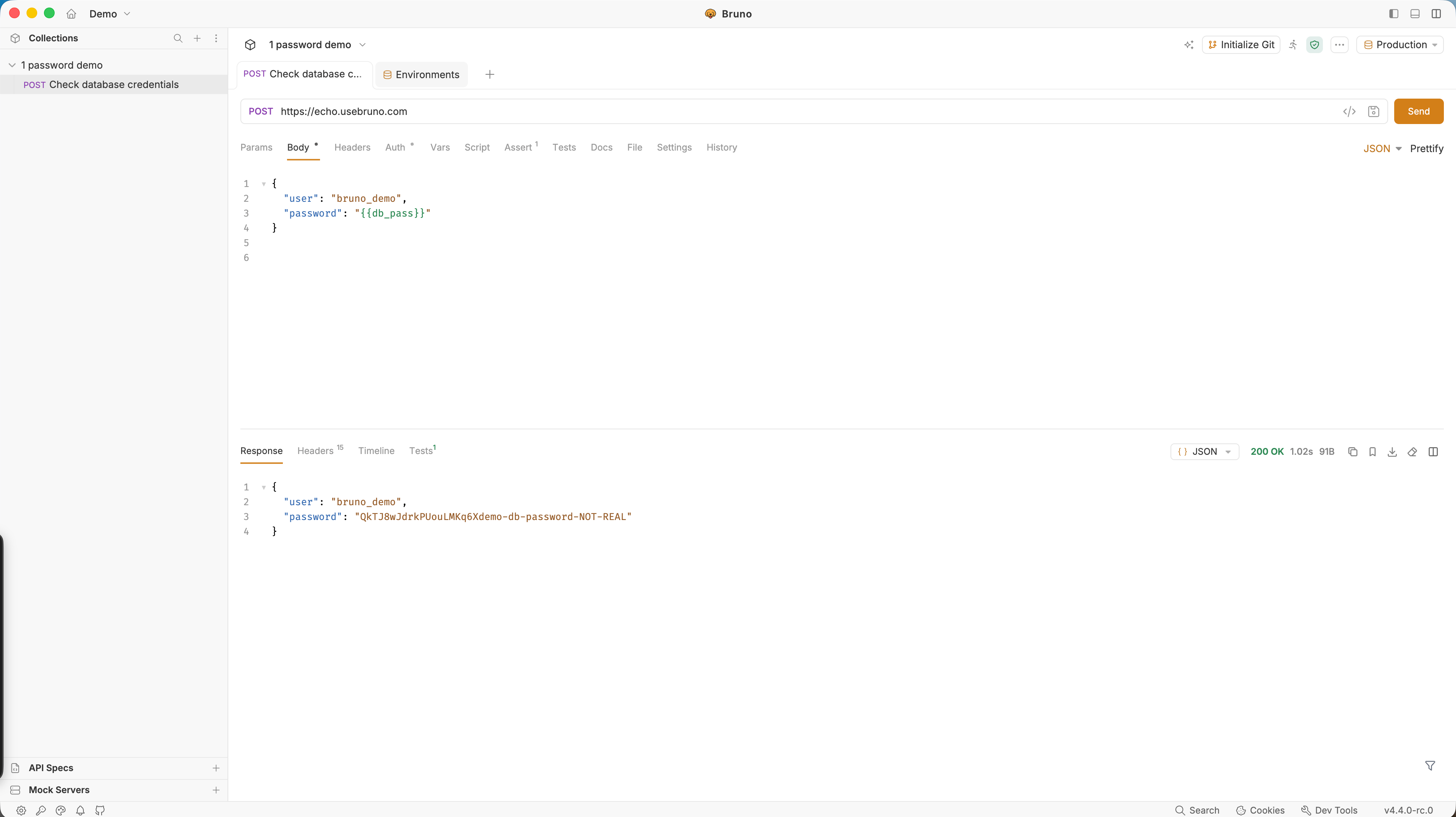
Then hit Send. You don't have to fetch anything first. Bruno notices the request needs a secret it doesn't have, fetches it from 1Password, and sends the request.
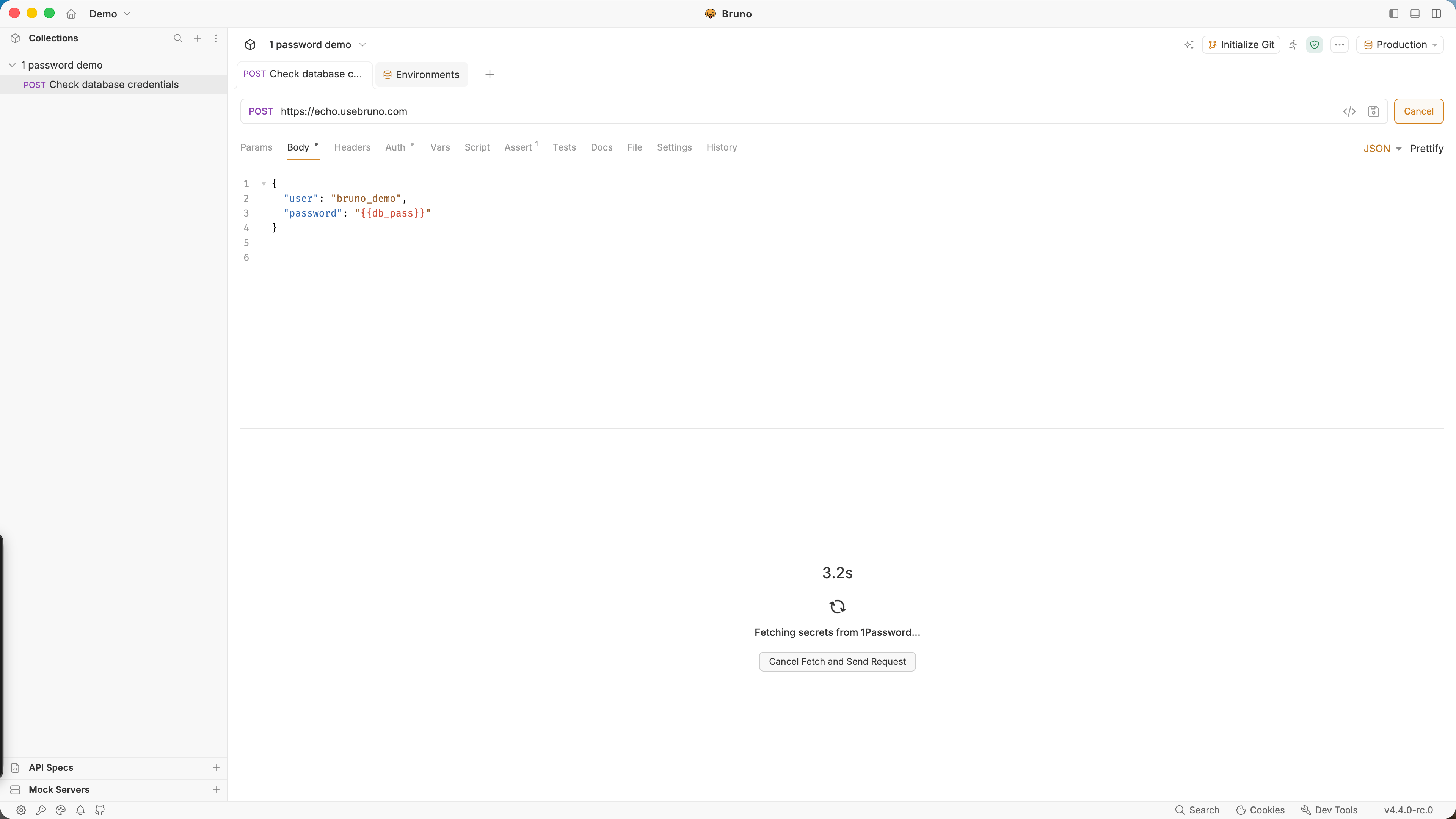
A moment later, the response comes back with the real value in place.
If you'd like to see the value beforehand, the Fetch Secrets button on the External Secrets tab does that on demand.
Where do the values go?
Nowhere permanent. Fetched values live in memory for your session and are never written to disk. Close Bruno, open it again, and the Value column is back to "Shown after fetch".
That has a nice side effect. Since Bruno reads the current value from 1Password each time it fetches, a rotated password is simply the new password. There's no copy to chase down.
The part your teammates will like
Push the collection to git. A teammate pulls it, opens the environment, and the 1Password setup is already there, because the reference came along with the collection.
The one thing that doesn't travel is the account. They add their own Service Account token, hit Send, and it works. Nobody pasted a password into a chat thread, and nothing sensitive ever touched the repo.
That's it
Your collection holds the references. 1Password holds the secrets.Bruno fetches them when they're needed and forgets them when you close the app.
Your clipboard can finally retire from handling passwords.