

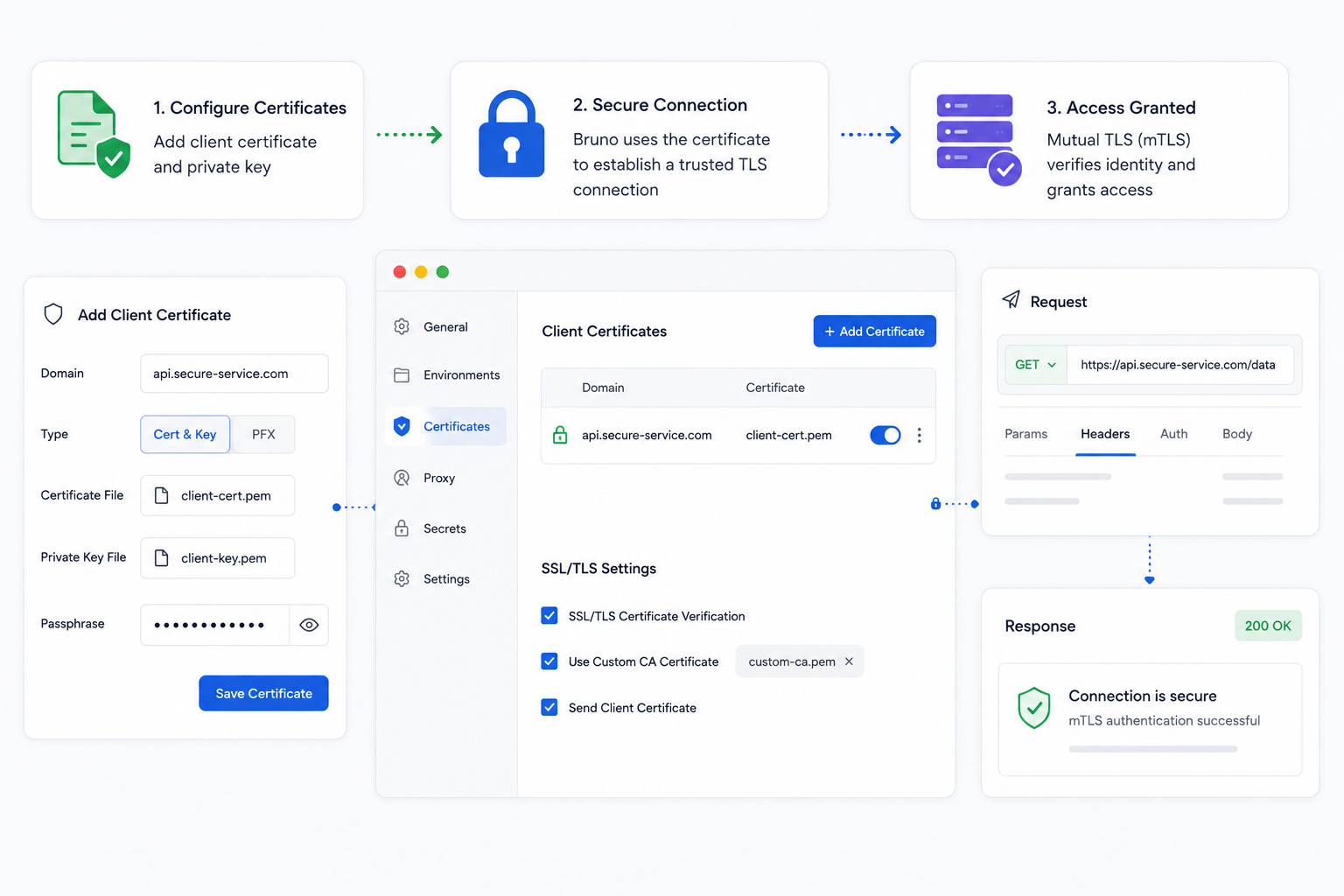
When an API uses HTTPS, certificates help establish trust before any request data is exchanged. A CA certificate helps Bruno verify that the server is genuine. A client certificate works in the other direction: it lets the server verify the identity of Bruno or the application making the request. When both checks happen in the same connection, the result is called mutual TLS (mTLS).
This beginner-friendly guide explains what CA and client certificates do, what happens during TLS and mTLS handshakes, and how to configure both in Bruno. At the end, you can fetch a ready-made sample collection and test the complete flow against badssl.com.
Table of Contents
- Certificates in API Development
- What Is a CA Certificate?
- What Is a Client Certificate?
- How TLS and mTLS Handshakes Work
- How to Configure a CA Certificate in Bruno
- How to Configure Client Certificates in Bruno
- Certificate Matching and Precedence
- Using Client Certificates with Bruno CLI
- Try It with a Sample Collection
- Troubleshooting
- Wrap Up
Certificates in API Development
A digital certificate is an electronic identity document. It contains information such as a domain or identity, a public key, an issuer, and an expiry date. A trusted Certificate Authority digitally signs the certificate so that another system can verify that it has not been forged or modified.
In an API connection there can be two separate identity checks:
Trust is not the same as authorization. A CA certificate helps verify identity and establish trust. The API can still apply its own authorization rules after the secure connection is established.
What Is a CA Certificate?
A Certificate Authority (CA) is an organization or internal system that signs certificates. Your operating system and applications already trust a set of well-known public CAs. That is why Bruno can normally connect to public HTTPS APIs without additional setup.
Private company APIs often use certificates signed by an internal CA. Because that CA is not in the normal public trust store, Bruno cannot verify the server and the request fails with an error such as self-signed certificate, unable to verify the first certificate, or unable to get local issuer certificate.
Adding the internal CA certificate tells Bruno: “Certificates signed by this authority may be trusted, provided the certificate is valid and matches the requested host.” You are adding a trusted issuer—not bypassing certificate verification.
What Is a Client Certificate?
A client certificate identifies the client to the server. APIs commonly use it for banking, payment systems, B2B integrations, internal services, healthcare systems, and zero-trust networks.
The server asks for a certificate during the TLS handshake. Bruno presents the certificate configured for that server’s domain and proves that it owns the associated private key. The private key itself is never sent over the network.
| Format | Files supplied to Bruno | Typical extensions |
|---|---|---|
| Cert & Key | Separate public certificate and private-key files | .crt, .pem, .key |
| PFX / PKCS#12 | Certificate and private key bundled in one file, usually protected by a passphrase | .pfx, .p12 |
Protect the private key. Anyone who obtains a client certificate and its private key may be able to impersonate that client until the certificate is revoked or expires. Do not commit private keys or PFX files to a public repository.
How TLS and mTLS Handshakes Work
The handshake happens before Bruno sends the HTTP, gRPC, or WebSocket request. It creates an encrypted channel and determines which identities must be verified.
Normal TLS: Bruno verifies the server
Mutual TLS: both sides verify identity
TLS protects data in transit. mTLS adds strong client authentication at the connection layer. Your API may still require a bearer token, API key, or another application-level credential after mTLS succeeds.
How to Configure a CA Certificate in Bruno
Use a custom CA when the server certificate was signed by an internal or otherwise untrusted authority.
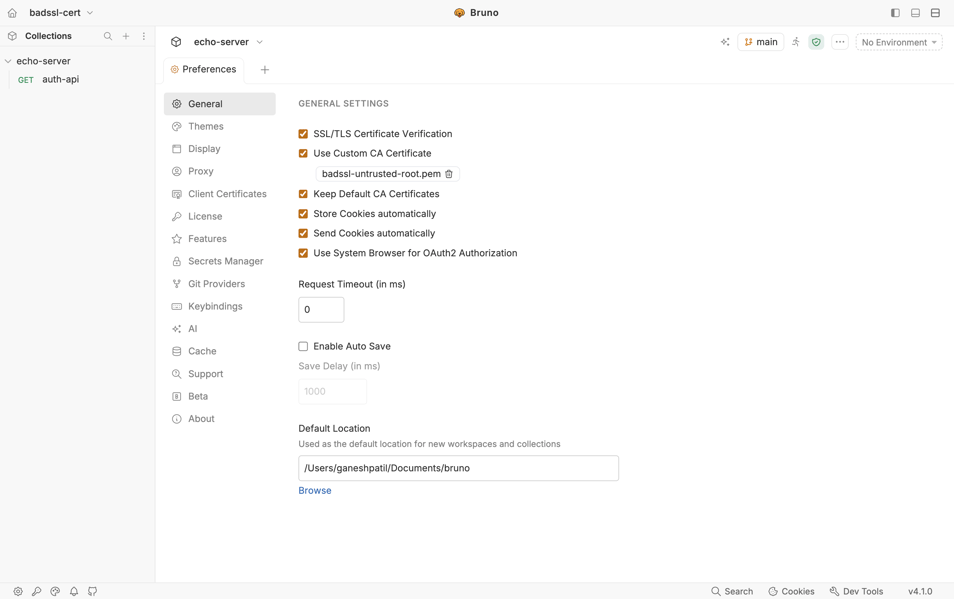
Open Preferences → General.
Enable Use Custom CA Certificate.
Select the CA file supplied by your organization, usually a .pem file.
Keep SSL/TLS Certificate Verification enabled, then send the request again.
Do not “fix” certificate errors by disabling TLS verification. That hides trust and hostname problems and can expose the connection to interception. Add the correct CA certificate instead.
How to Configure Client Certificates in Bruno
Bruno supports client certificates for HTTPS, gRPC, and WebSocket requests. From Bruno v4.1.0, you can configure certificates globally or for one collection.
Option A: Add a global client certificate
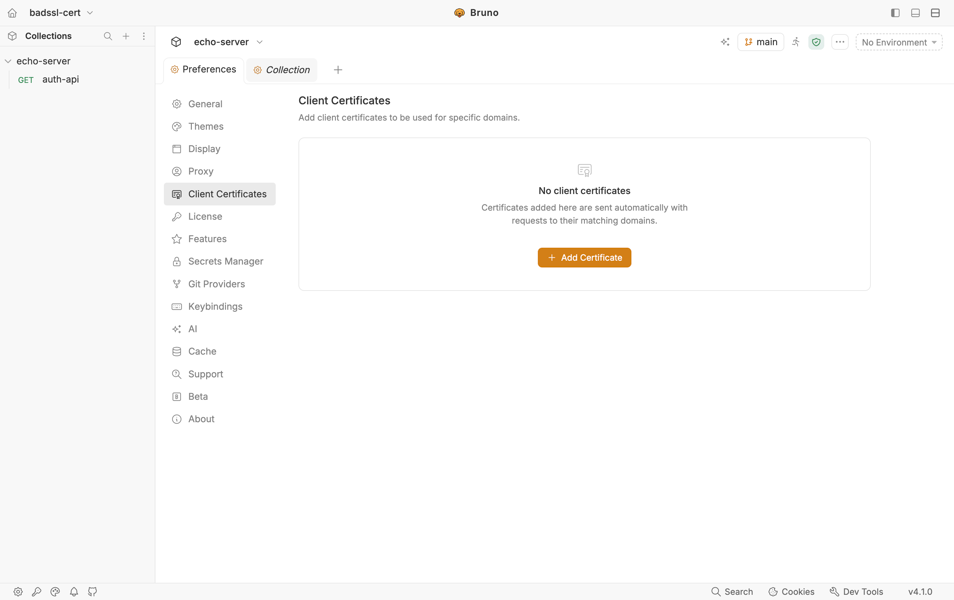
Open Preferences → Client Certificates.
Click + Add Certificate and enter the domain, such as client.badssl.com or *.internal.example.com.
Choose Cert & Key or PFX, then select the required file or files.
Enter the passphrase if the private key or PFX bundle requires one.
Save. The certificate is enabled by default and can now be used by every collection targeting that domain.
Option B: Add a collection client certificate
Open the collection, then go to Collection Settings → Client Certificates.
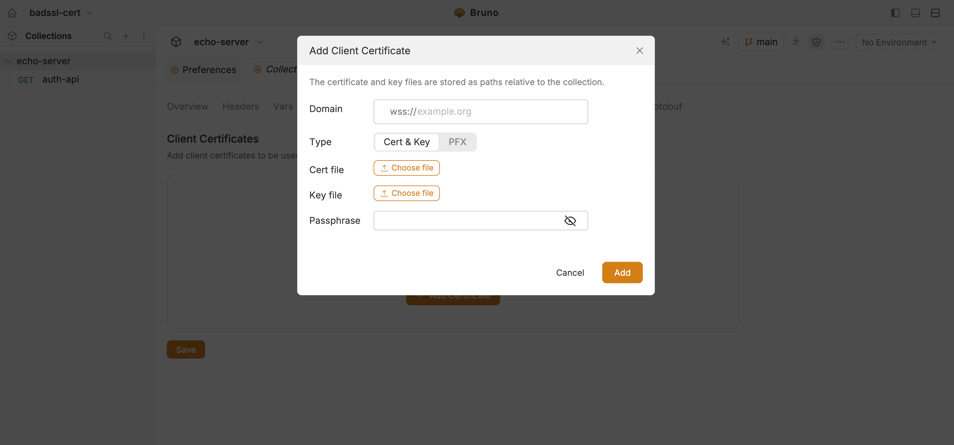
Click + Add Certificate and enter the domain.
Choose Cert & Key or PFX, then select the certificate files. Bruno stores their paths relative to the collection.
Enter a passphrase if required. Passphrases support {{variable}} interpolation, so sensitive values do not need to be hardcoded.
Save, then send a request to a matching host.
Temporarily disabling a certificate
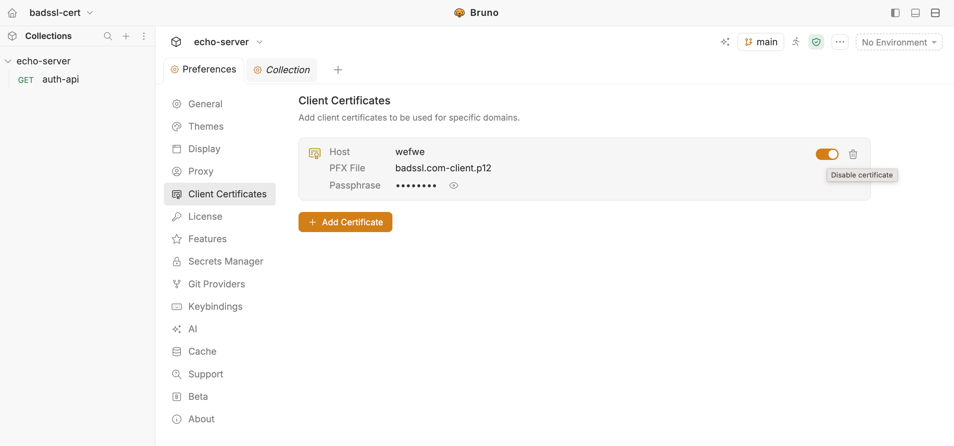
Each global and collection certificate has its own enable/disable switch and is enabled by default. Disable an entry when you want to test another certificate or debug a configuration without deleting it. Disabled entries are skipped completely during certificate resolution.
Certificate Matching and Precedence
Bruno selects a client certificate by matching the request host against each configured domain. Only enabled entries are considered, and matching uses first-match behavior.
If both levels contain an enabled certificate for the same domain, the collection certificate wins. This lets a collection override a reusable global default.
Using Client Certificates with Bruno CLI
The CLI does not read global certificates from the desktop Preferences store. For local terminal runs or CI, pass an additional certificate file using --client-cert-config.
# run from inside the collection directory
cd /path/to/your-collection

bru run --client-cert-config /path/to/client-cert-config.json
# run only the payments folder, still inside the collection
bru run payments --client-cert-config /path/to/client-cert-config.jsonExample configuration:
{
  "enabled": true,
  "certs": [
    {
      "domain": "*.internal.example.com",
      "type": "cert",
      "certFilePath": "/abs/path/client.crt",
      "keyFilePath": "/abs/path/client.key",
      "passphrase": ""
    },
    {
      "domain": "payments.example.com",
      "type": "pfx",
      "pfxFilePath": "/abs/path/payments-client.pfx",
      "passphrase": "use-a-secure-value"
    }
  ]
}- The JSON file must exist and contain valid JSON.
- The top-level
enabledfield must betrue. - Collection certificates are loaded first.
- Certificates from
--client-cert-configare appended after them. - For overlapping domains, the collection certificate therefore wins.
- Collection certificates marked disabled are skipped.
CI safety: keep certificate files and passphrases in your CI secret store. Materialize them only for the duration of the job and remove them afterward.
Try It with a Sample Collection
The client-cert-badssl sample collection includes two requests:
Custom CA test
https://untrusted-root.badssl.com
Fails with the default trust store and succeeds after you add the included untrusted root CA.
Client certificate test
https://client.badssl.com
Requires the included PKCS#12 client certificate. The sample passphrase is badssl.com.

Click Fetch in Bruno above and open the collection.
For the CA request, add certificates/badssl-untrusted-root.pem under Preferences → General.
For the mTLS request, configure certificates/badssl.com-client.p12 for client.badssl.com. Use passphrase badssl.com.
Send each request separately and compare the result with and without its certificate configured.
The certificate and passphrase in this public sample are intentionally provided for testing against badssl.com. Never treat a real production private key this way.
Troubleshooting
| Problem | What to check |
|---|---|
| Untrusted or self-signed certificate | Add the correct root or intermediate CA and keep TLS verification enabled. |
| Hostname mismatch | The URL host must appear in the server certificate’s Subject Alternative Names. A CA file cannot fix the wrong hostname. |
| Server rejects the client | Check the configured domain, certificate expiry, certificate chain, private key, and PFX passphrase. |
| Wrong client certificate used | Check for an earlier enabled domain match. Collection entries take precedence over global entries. |
| Works in the app, fails in CLI | The CLI does not read global Preferences. Supply --client-cert-config, or use a collection-level certificate. |
Wrap Up
The easiest way to remember the difference is direction: a CA certificate helps Bruno trust the server, while a client certificate helps the server trust Bruno. Standard TLS normally performs the first check. mTLS performs both.
In Bruno, add a private CA under Preferences → General. Add reusable client certificates under Preferences → Client Certificates, or configure a collection-level certificate when the files and settings belong to one collection. Leave certificate verification enabled, protect private keys, and use the CLI configuration flag in CI because the CLI does not read desktop Preferences.