

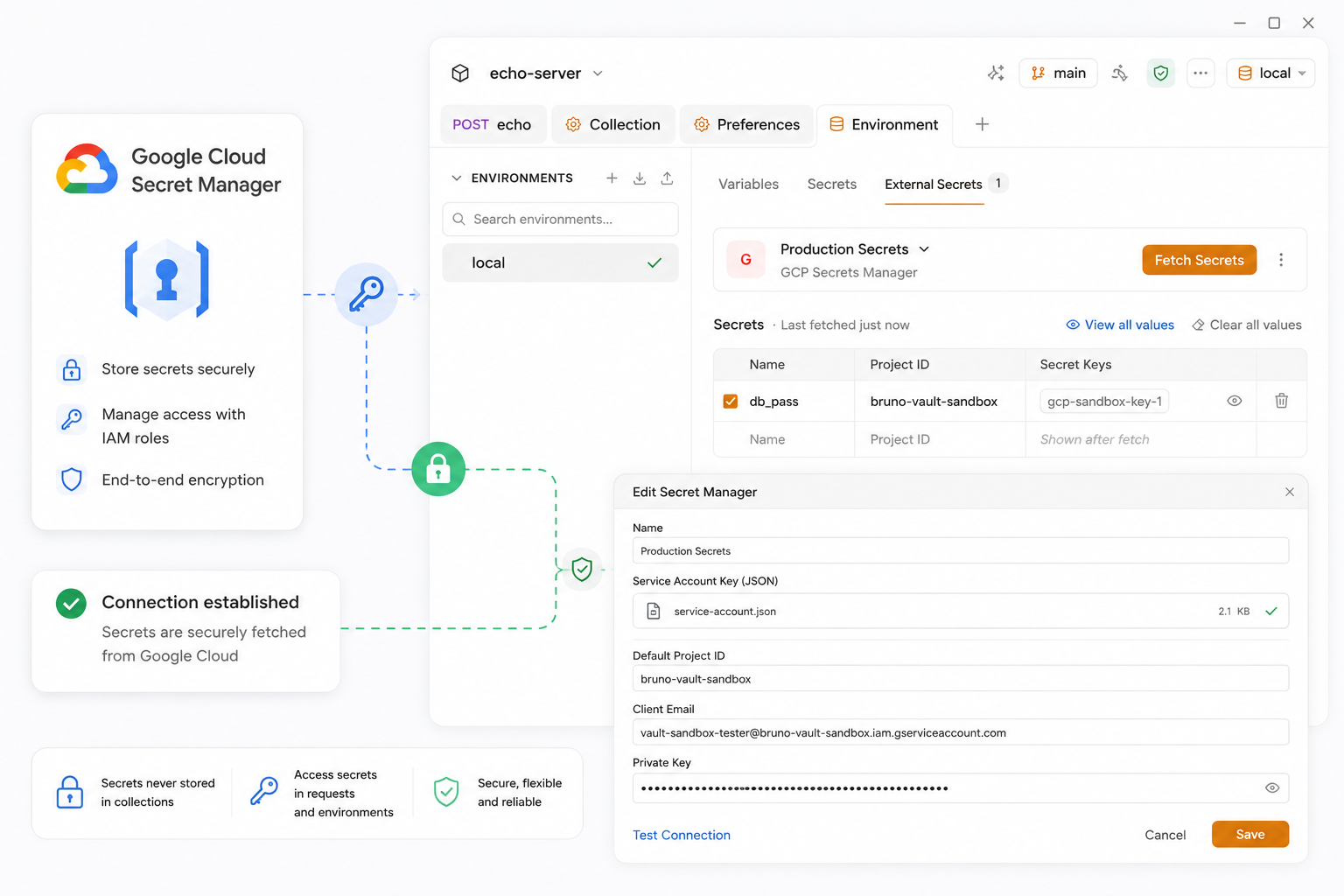
Securing credentials is one of the most important and most quietly neglected jobs in software development. As an individual developer, your API keys probably live in an environment file, a scratch note, or pasted directly into a request. It works, until you need to rotate a key, onboard a teammate, or run the same tests in CI without leaking anything.
That is where a secret manager earns its place. This guide walks through integrating Google Cloud Secret Manager with Bruno, end to end: configure the provider, fetch secrets into an environment, reference them in requests and scripts, and run the same collection from the Bruno CLI.
Bruno is an open-source, offline-first, Git-friendly API client. Your collections are plain files on disk which is exactly why pulling secrets from a managed vault at runtime matters: the credentials never land in those files.
Table of Contents
- Why Not Just Use a .env File?
- What Is Google Cloud Secret Manager?
- Before You Start: Prerequisites
- Step 1: Configure GCP Secret Manager in Bruno
- Step 2: Fetch Secrets Into an Environment
- Step 3: Use Secrets in Requests
- Step 4: Use Secrets in Scripts
- Step 5: Use GCP Secrets in the Bruno CLI
- Troubleshooting
- Good to Know & Current Limits
- Conclusion
Why Secret Manager?
Storing an API key in a local .env file or an environment variable is fine for a weekend project. The cracks appear the moment more than one person, or more than one machine, is involved:
- Rotation is manual. Change the key in GCP and every teammate has to update their local copy. Someone always misses it.
- Onboarding leaks secrets. Sending a
.envfile over Slack means the credential has escaped the vault before it ever reached the API client. - No audit trail. When a key leaks, you cannot answer "who read this, and when?"
- No least privilege. Every developer with the file has production access, whether they need it or not.
A secret manager fixes all four. Bruno supports HashiCorp Vault, AWS Secrets Manager, Azure Key Vault, and Google Cloud Secret Manager. This guide covers the last one.
What Is Google Cloud Secret Manager?
Google Cloud Secret Manager is a managed service for storing API keys, passwords, certificates, and other sensitive strings. Each secret has a secret ID (the name) and one or more versions (the values). Access is controlled through IAM, every read is logged in Cloud Audit Logs, and the payload can be anything like a plain string or a JSON blob.
Three concepts carry over into Bruno, so it is worth fixing them now:
| GCP concept | What it means in Bruno |
|---|---|
| Project | One row in the environment's External Secrets config. Each row gets a friendly Name you use as a namespace. |
| Secret ID | The key you reference: {{rowName.secretId}} |
| Version | Bruno always reads the latest version. Version pinning is planned but not available yet. |
Before You Start: Prerequisites
You need four things in place on the Google Cloud side. Skipping any one of them is the most common reason the connection test fails.
A GCP project with the Secret Manager API enabled.
At least one secret created in that project.
A service account that can both list and read secrets. Bruno lists every secret in the project, so it needs more than read-on-one-secret:
roles/secretmanager.viewer- to list the secrets in the projectroles/secretmanager.secretAccessor- to read the secret payloads
A service account JSON key downloaded to your machine.
Note: Bruno currently authenticates with a service account key only. Application Default Credentials, gcloud CLI auth, and Workload Identity Federation are planned for a future release.
If you prefer the terminal, this creates the account and grants both roles:
# enable the API
gcloud services enable secretmanager.googleapis.com --project my-project

# create the service account
gcloud iam service-accounts create bruno-secrets \
  --display-name="Bruno Secret Reader" --project my-project

# grant list + read access
gcloud projects add-iam-policy-binding my-project \
  --member="serviceAccount:bruno-secrets@my-project.iam.gserviceaccount.com" \
  --role="roles/secretmanager.viewer"

gcloud projects add-iam-policy-binding my-project \
  --member="serviceAccount:bruno-secrets@my-project.iam.gserviceaccount.com" \
  --role="roles/secretmanager.secretAccessor"

# download the key Bruno will use
gcloud iam service-accounts keys create ./bruno-sa-key.json \
  --iam-account=bruno-secrets@my-project.iam.gserviceaccount.com
Step 1: Configure GCP Secret Manager in Bruno
The provider is configured once in Preferences, then reused by any collection environment. You do not repeat this per collection.
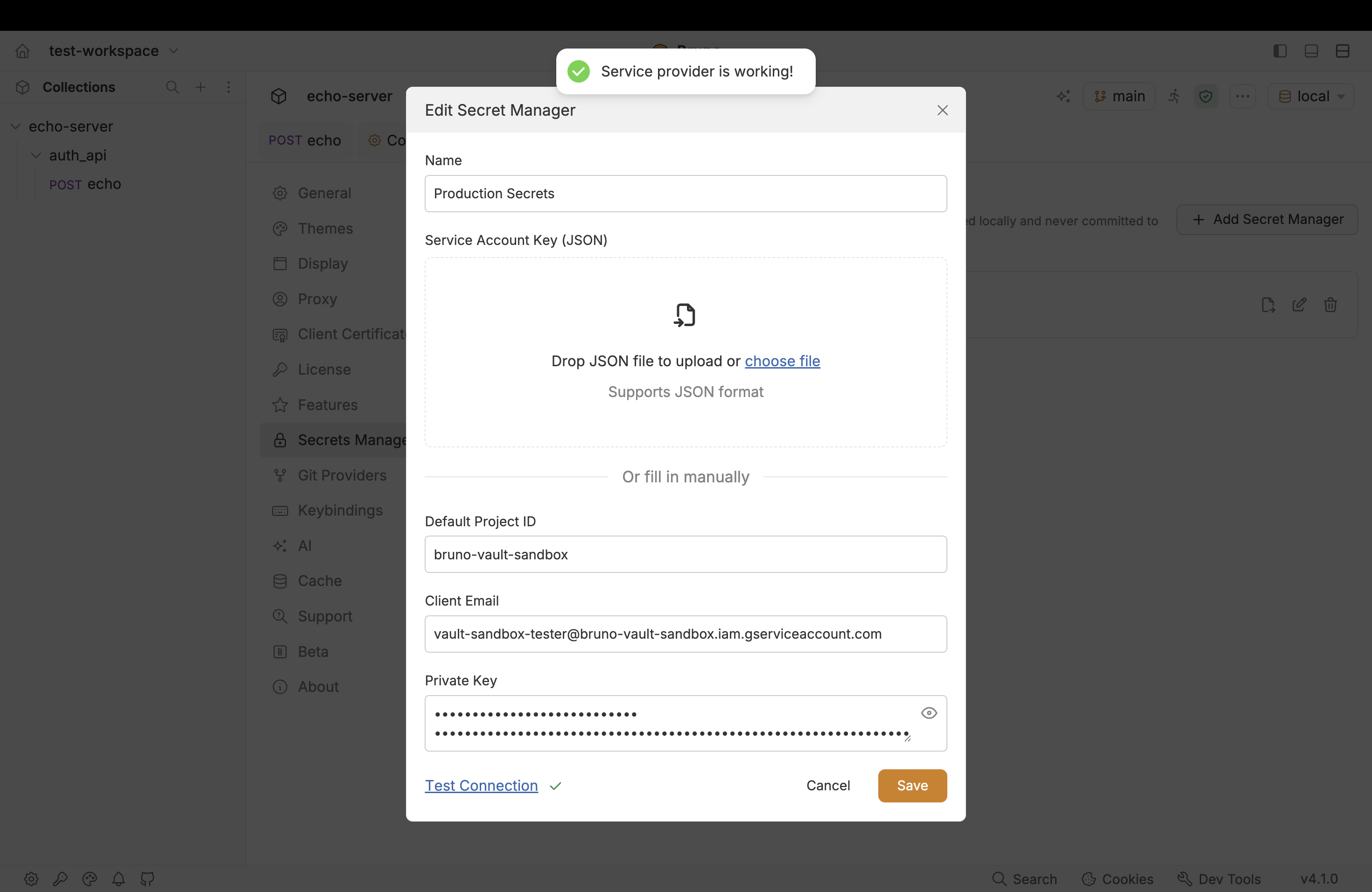
Open Preferences and select Secrets Manager from the bottom-left sidebar.
Click + Add Secret Manager and choose GCP Secrets Manager as the provider type.
Give the account a Name that describes it, for example Production GCP. This is a label for you, not part of the variable syntax.
Provide the service account credentials. Either option works:
- Upload or paste the JSON key - Bruno fills in Default Project ID, Client Email, and Private Key for you. This is the quickest and least error-prone route.
- Enter the fields manually - Default Project ID (defaults to the key's
project_id), Client Email, and Private Key (theprivate_keyvalue from the JSON).
Click Test Connection. A green result means Bruno authenticated with the service account successfully.
Click Save button.
The account now appears in the Secrets Manager list and is selectable from any environment.
The Default Project ID is only a default. One service account can read from several projects. You can override the project on each environment row in the next step, so do not worry about picking the "right" one here.
Step 2: Fetch Secrets Into an Environment
⚠ From Bruno v4.0.0 onwards, secret manager configuration lives under Environment → External Secrets. If you are used to configuring this from Collection Settings, that is the change to remember.
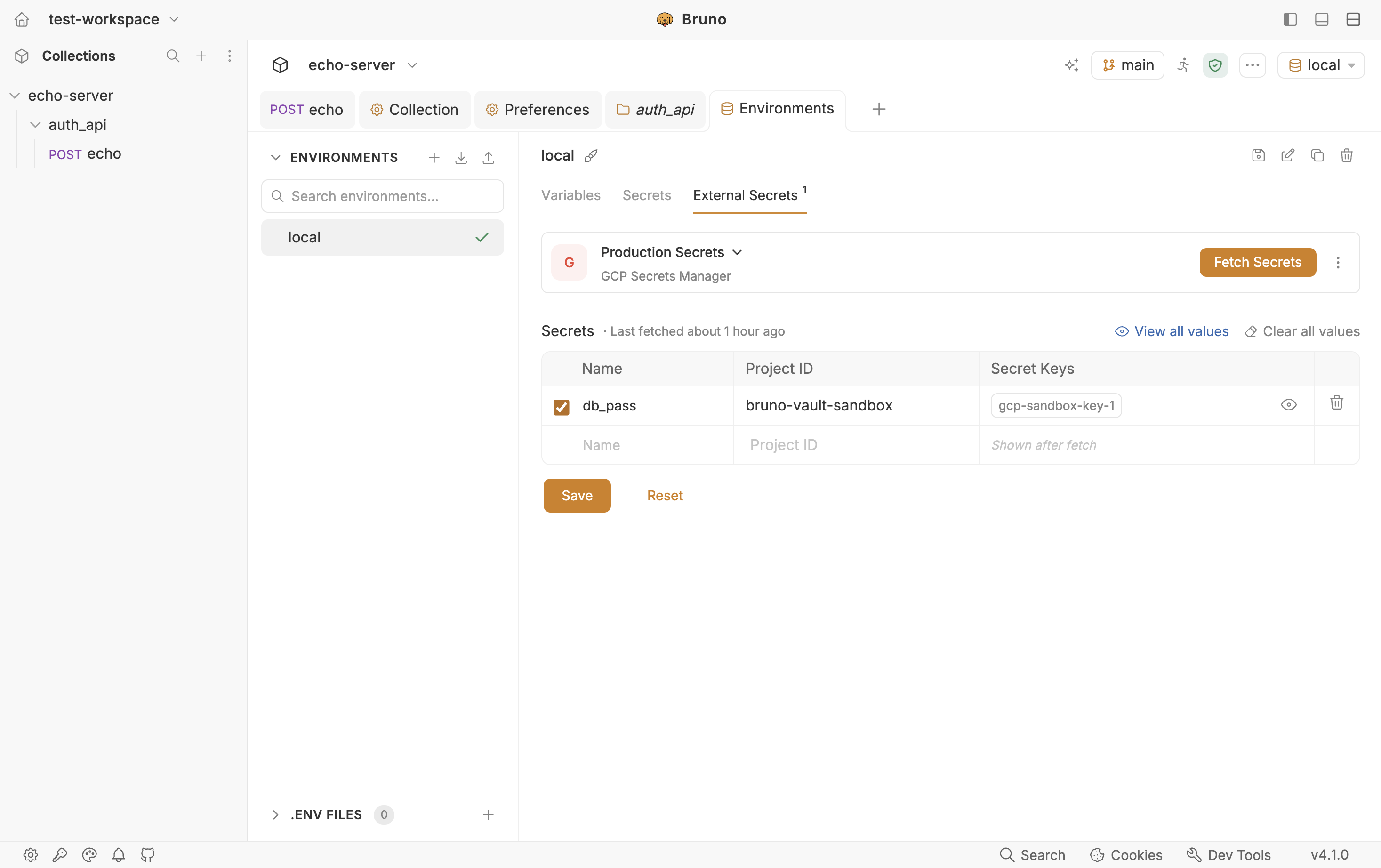
Open your collection's Environments, pick the environment you want (for example Production), and open the External Secrets tab.
Select GCP Secrets Manager.
Choose the account you created in Step 1, or use Add new account to create one inline.
Add a row for each project you want to read from:
- Name - the alias you will type in requests, for example
stagingorprod. Keep it short, you will type it a lot. - Project ID - prefilled with the account default. Change it on any row to pull from a different project using the same service account.
Click Fetch Secrets in the top-right corner.
Bruno lists every secret in each project at its latest version. The IDs appear under Secret Keys that list is your reference for what you can use.
The three-dots menu on the provider lets you Edit account or Remove secret manager from this environment.
Reading from more than one project
One service account, several projects: keep the default project on the first row, then add a second row with a different Project ID. Each row's Name becomes the namespace for that project's secrets, so identical secret IDs in different projects never collide.
| Row Name | Project ID | Reference in a request |
|---|---|---|
staging |
my-app-staging |
{{staging.api-key}} |
prod |
my-app-prod |
{{prod.api-key}} |
Step 3: Use Secrets in Requests
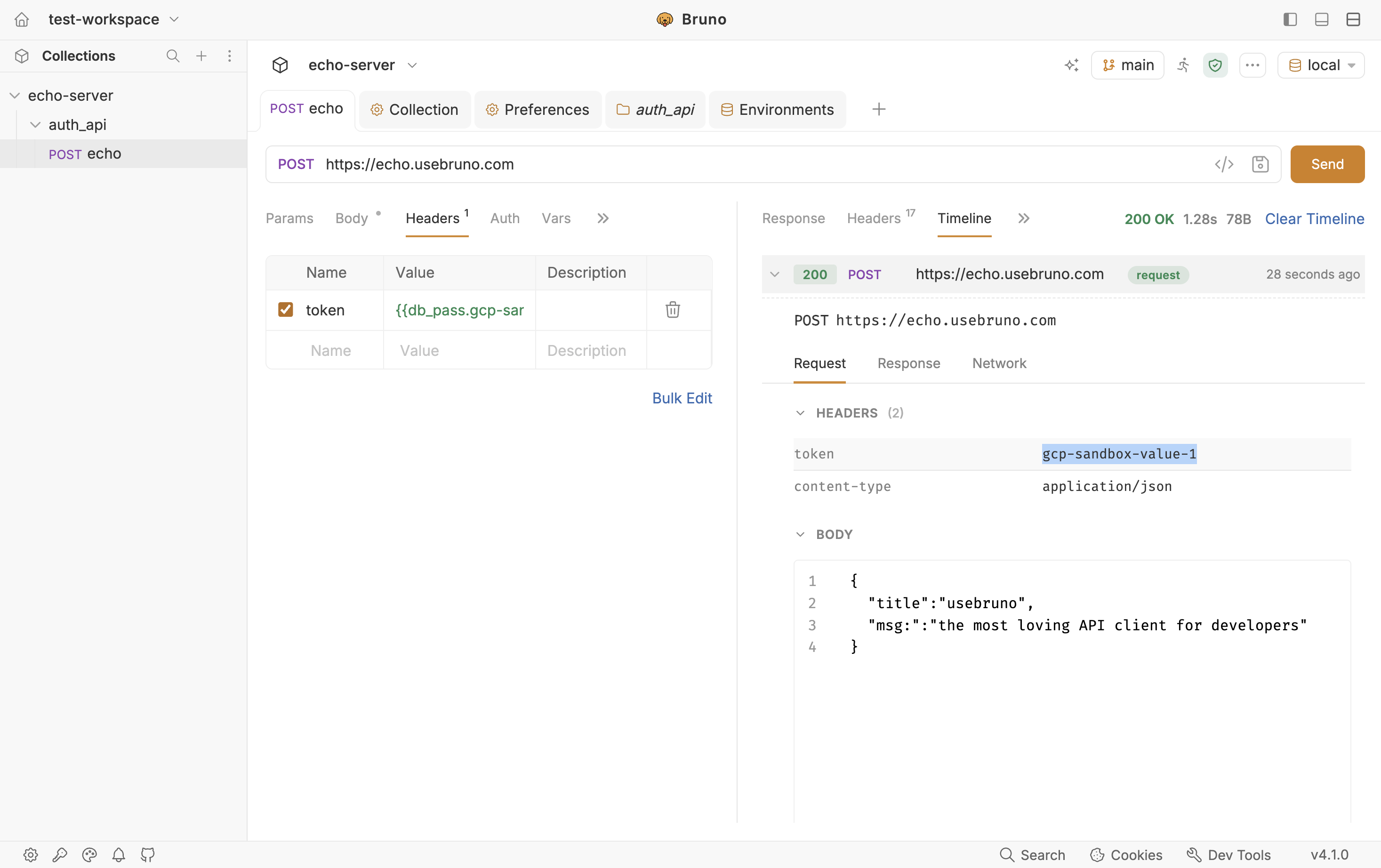
Fetched secrets behave like any other Bruno variable. Use them in the URL, query params, headers, request body, or auth fields. The pattern is row name, dot, secret ID:
{{<row-name>.<secret-id>}}If the secret payload is JSON, Bruno parses it so you can reach individual keys with one more dot:
{{<row-name>.<secret-id>.<json-key>}}Concretely, with a row named staging:
| Stored in GCP | Payload | Reference in Bruno |
|---|---|---|
Secret ID api-key |
plain string | {{staging.api-key}} |
Secret ID db |
{ "password": "…" } |
{{staging.db.password}} |
A typical Authorization header therefore looks like this:
Authorization: Bearer {{staging.api-key}}Old syntax vs new syntax
| Syntax | Status |
|---|---|
{{name.keyname}} |
Recommended (v4+) |
{{$secrets.name.keyname}} |
Deprecated — works until the next major release |
The legacy form still resolves in v4 and is shown with a deprecation underline in the editor. An in-app tool that rewrites every $secrets reference for you ships in v4.2.0.
Step 4: Use Secrets in Scripts
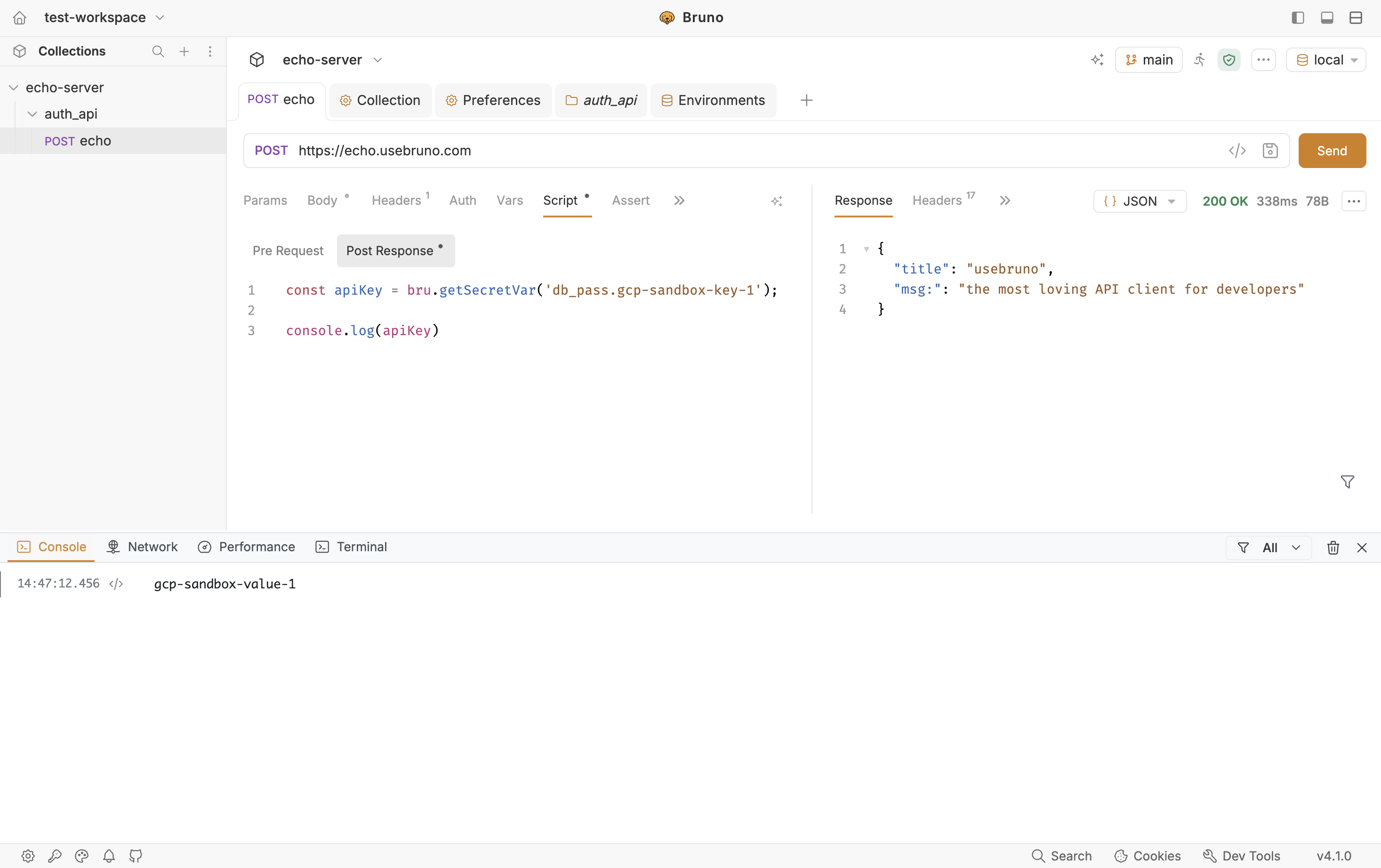
In Pre-request and Post-response scripts, read secrets with bru.getSecretVar(). The argument is the same dotted path you would use in a request field, as a string:
// plain string secret
const apiKey = bru.getSecretVar('staging.api-key');
req.setHeader('Authorization', 'Bearer ' + apiKey);

// sub-key of a JSON secret
const password = bru.getSecretVar('staging.db.password');
This is useful when the credential needs work before it goes on the wire, signing a payload, building a Basic auth header, or exchanging a client secret for a short-lived token:
// build a Basic auth header from two GCP secrets
const user = bru.getSecretVar('staging.db.username');
const pass = bru.getSecretVar('staging.db.password');

const encoded = Buffer.from(`${user}:${pass}`).toString('base64');
req.setHeader('Authorization', `Basic ${encoded}`);
Two things to get right: the GCP account must be configured and the secrets already fetched before a script runs, and the names must match exactly the environment row alias and the GCP secret ID, character for character.
Step 5: Use GCP Secrets in the Bruno CLI
The configuration you just created lives in the environment file, so it travels with your repository. What does not travel — deliberately are the credentials. Those are passed to the CLI at runtime with --secrets-env-file.
Export the credential file from the app
You do not have to write the dotenv file by hand:
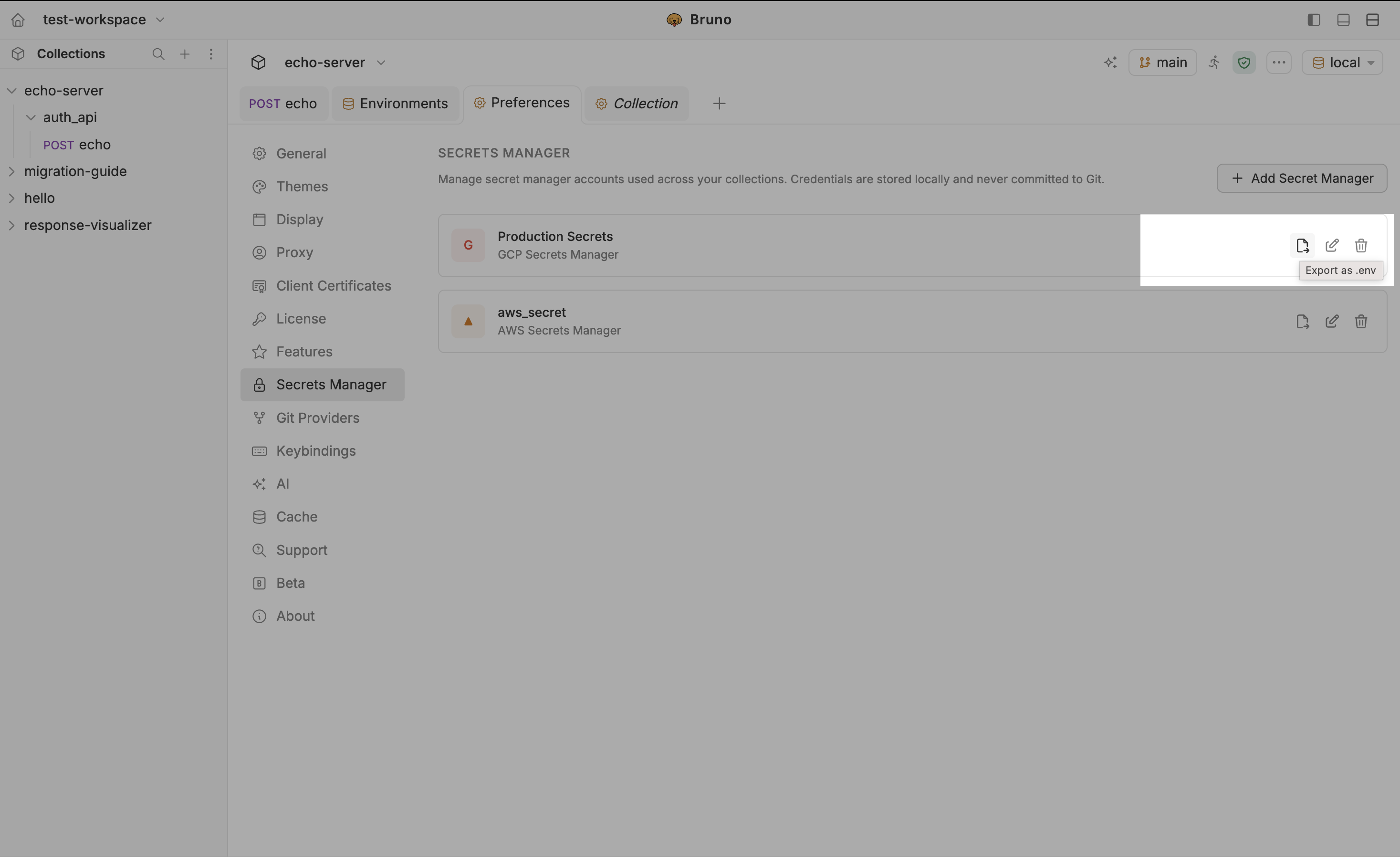
Go to Preferences → Secrets Manager.
Hover the GCP account and click the Export as .env icon.
Bruno writes a ready-to-use file to disk.
The exported file contains three variables:
BRUNO_GCP_SECRETS_MANAGER_PROJECT_ID=my-project
BRUNO_GCP_SECRETS_MANAGER_CLIENT_EMAIL=service-account@my-project.iam.gserviceaccount.com
BRUNO_GCP_SECRETS_MANAGER_PRIVATE_KEY="-----BEGIN PRIVATE KEY-----\n...\n-----END PRIVATE KEY-----\n"
🔒 This file contains your service account private key in plain text. Add it to .gitignore immediately and never commit it. In CI, keep it in the pipeline's secret store and write it to a temporary file at run time.
The PROJECT_ID here is only the account default. The projects actually read from come from the environment rows, so a single credential file works across all of them.
Run the collection
bru run --env Production --secrets-env-file ./secrets.env-
--env: CLI flag to pass environment name -
--secrets-file-name: Pass exported .env file from the app
Secrets are fetched at runtime, injected into the variable chain, and never written to disk or printed in logs.
Variable precedence
When the same name is defined in more than one place, the highest entry wins:
External secrets                        ← highest
    ↓
Secret env vars (--secrets-env-file)
    ↓
Environment variables (--env)
    ↓
Collection / Workspace / Global env      ← lowest
⚠ The CLI does not auto-migrate secrets.json. If it finds a legacy secrets.json but no externalSecrets block in the environment file, it prints a warning and continues without secrets. Fix: open the collection in the app once (migration runs automatically), then commit the updated environment file.
Troubleshooting
| Symptom | Likely cause and fix |
|---|---|
| Test Connection fails | The Secret Manager API is not enabled on the project, or the private key was pasted with broken newlines. Re-upload the JSON key instead of copying fields by hand. |
| Connection succeeds but the secret list is empty | The service account can read but not list. Grant roles/secretmanager.viewer in addition to secretAccessor. Also confirm the row's Project ID. |
Variable renders literally as {{staging.api-key}} |
The wrong environment is selected, secrets have not been fetched yet, or the row alias / secret ID does not match exactly. |
| JSON sub-key comes back undefined | The payload is not valid JSON, so Bruno exposes it as a single string. Reference it without the sub-key, or fix the payload in GCP. |
| Works in the app, fails in the CLI | The environment file with the externalSecrets block was not committed, or --secrets-env-file was omitted. |
Good to Know & Current Limits
Conclusion
The setup is a one-time cost: add the service account in Preferences, attach it to an environment, click Fetch Secrets. From that point on your collection references credentials by name and Google Cloud Secret Manager remains the single source of truth. Rotating a key becomes a change in one place, onboarding a teammate means granting IAM access rather than sending a file, and CI runs read the same secrets without any of them landing in a log or a commit.
Because Bruno stores collections as plain files in Git, this separation matters more than it would in a cloud-based client: the configuration is versioned and reviewable, while the secrets themselves never enter the repository.