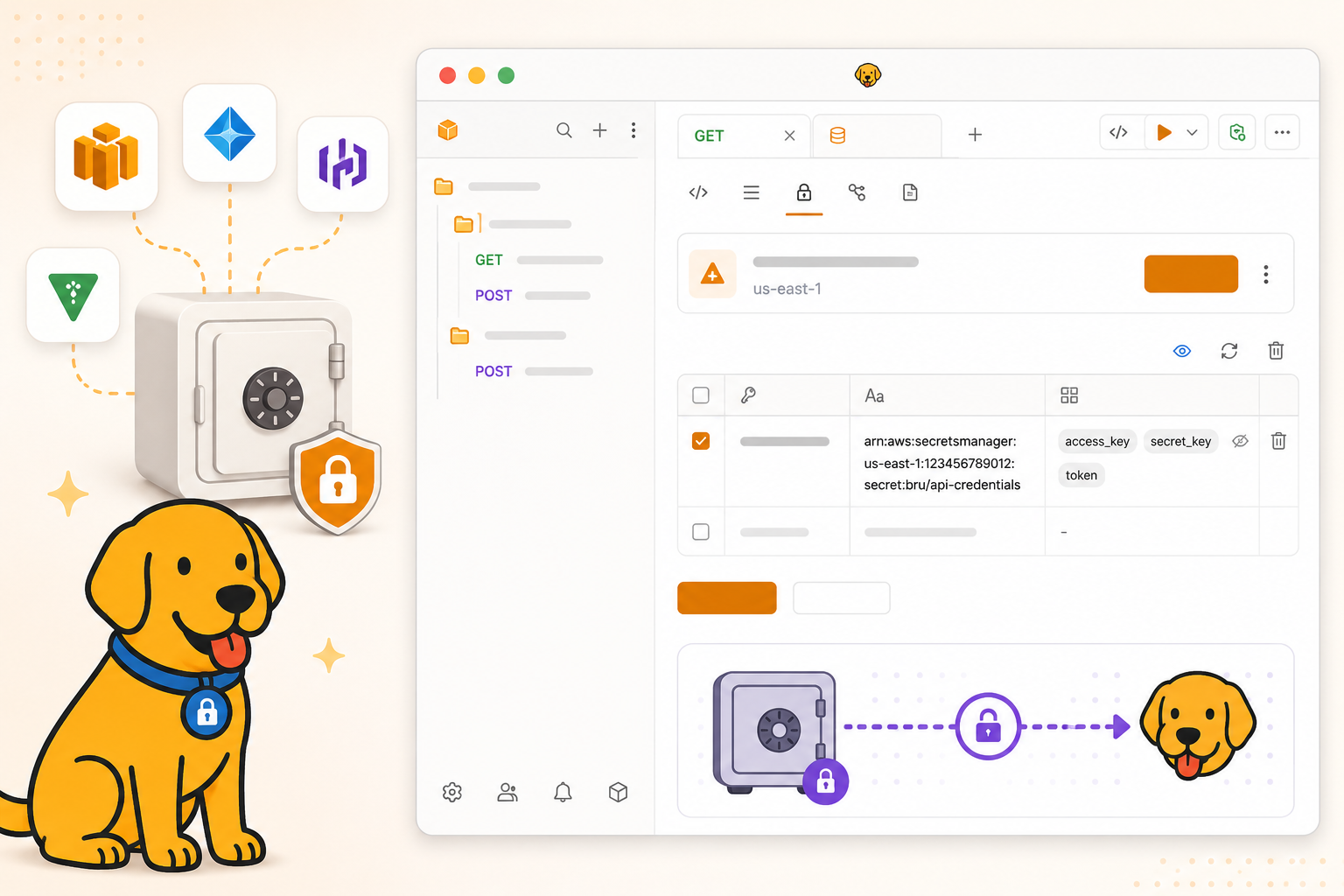
Secret managers solve one of the most common pain points in API development: keeping credentials out of collection files, rotating them without touching every developer's machine, and enforcing who gets access to what. Bruno v4 connects directly to HashiCorp Vault, AWS Secrets Manager, and Azure Key Vault. This guide walks through exactly how to set each one up.
Table of Contents
Why Secret Management Matters for API Development
Every non-trivial API has credentials. Database passwords, API keys, OAuth client secrets, tokens. They are everywhere. The natural instinct is to paste them into environment variables or .env files and move on. That works for a single developer, but it breaks down quickly when teams grow and security requirements tighten.
The real challenges show up when you ask:
- How do we rotate a credential? If the API key is hardcoded in fifty collection files across ten developers' machines, rotating it means a manual update round-trip to every person on the team.
- How do we onboard a new engineer? Sharing a
.envfile over Slack or email means the credential has now escaped the vault before it ever reached Bruno. - How do we audit who used what? When a key leaks, you need to know which systems were using it. Environment files have no audit trail.
- How do we enforce least-privilege? Not every developer needs production credentials. Secret managers enforce this at the identity level. Bruno just reads what it is allowed to read.
This is why engineering teams adopt dedicated secret managers like HashiCorp Vault, AWS Secrets Manager, and Azure Key Vault. They centralise credential storage, enforce access control, provide audit logs, and support automatic rotation. Secrets never touch a developer's file system.
Bruno v4 connects directly to all three, so your collections can pull live credentials at runtime without anyone ever copy-pasting a secret.
What Changed in Bruno v4
⚠ Breaking changes in v4. Please read before upgrading.
In the app:
- Secret Manager configuration has moved out of
secrets.jsonand into environment files under a newexternalSecretsblock. - Secret Manager is now configured from the Environment UI, not from Collection Settings.
- Opening a collection with a
secrets.jsontriggers automatic migration. No manual step needed. - If
secrets.jsonis marked read-only, migration will fail with no fallback. You will need to re-enter the configuration manually in the Environment UI. - The
syntax is deprecated. New syntax:. Old syntax still resolves in v4. Removal planned for the next major release (at least 6 months away). One-click in-app migration tool ships in v4.2.0.
In the CLI:
- The CLI does not auto-migrate. If it finds
secrets.jsonwithout anexternalSecretsblock, it prints a warning and continues without secrets. - Fix: open the collection in the app first, let the migration run, then commit the updated environment file.
- Credentials are now passed via
--secrets-env-file <path>instead of--env-var. - AWS Secrets Manager and Azure Key Vault are now supported in the CLI (HashiCorp Vault was the only option in v3).
New variable syntax at a glance
| Syntax | Status |
|---|---|
{{name.keyname}} |
New (recommended) |
{{$secrets.name.keyname}} |
Deprecated, works until next major release |
Configure HashiCorp Vault
HashiCorp Vault is the most widely used open-source secret manager. Bruno supports both Vault Server (self-hosted or enterprise) and HCP Vault (HashiCorp Cloud Platform).
Step 1 - Add the provider in Preferences
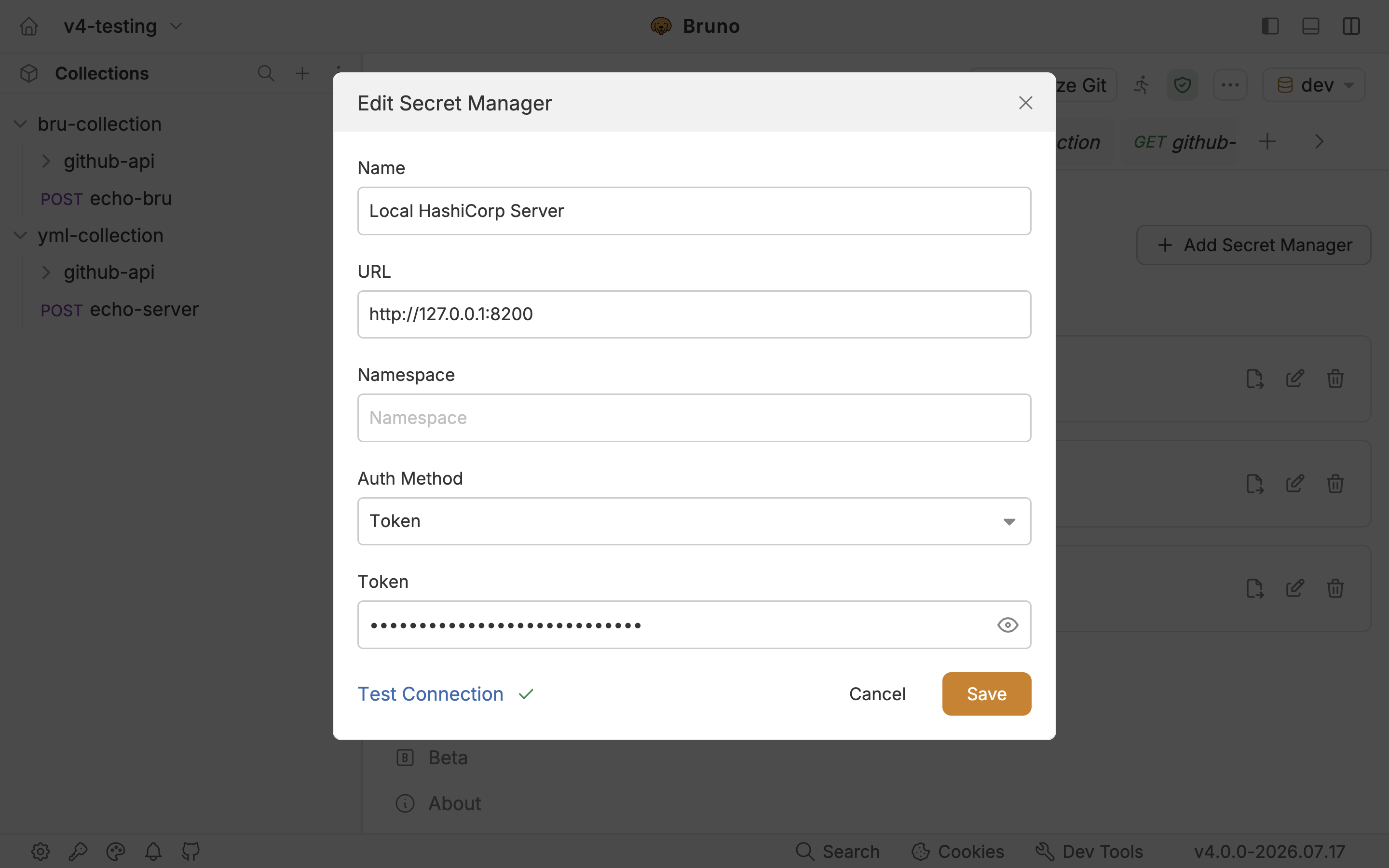
Open Bruno and go to Preferences → Secrets Manager. Click + Add Secret Manager.
Select HashiCorp Vault Server and choose an auth method:
- Token — static Vault token. Simplest; good for local development.
- App Role — Role ID + Secret ID pair. Best for CI/CD and automated pipelines.
- LDAP — username and password via an LDAP/Active Directory-backed Vault.
Enter the Vault URL (e.g. http://localhost:8200) and credentials. Click Test Connection, then Add.
For HCP Vault, select HashiCorp Vault Cloud and provide your Client Credentials and project details.
Step 2 - Attach secrets to an environment
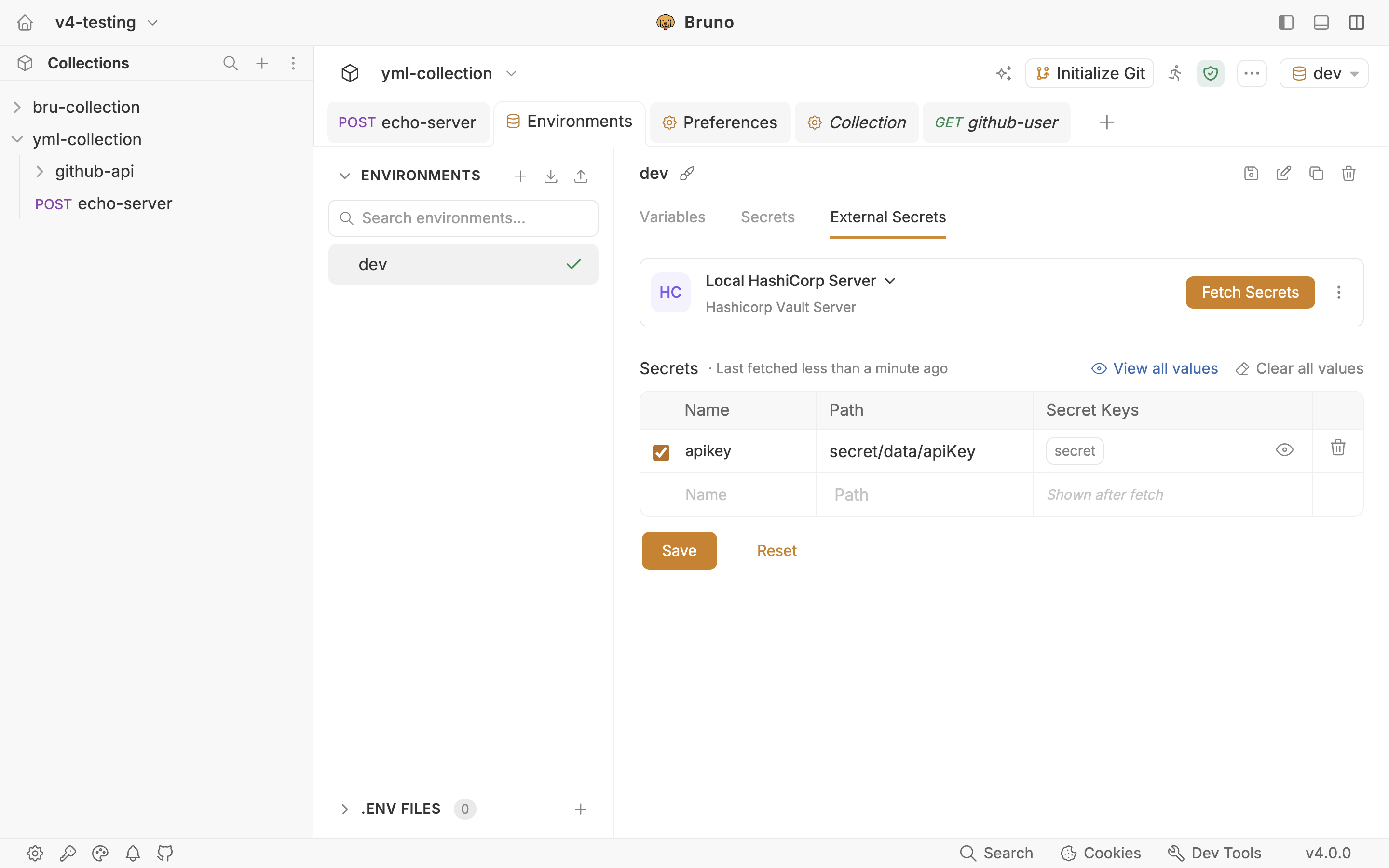
Open your collection → Environments → select the target environment → open the External Secrets tab.
Select your Vault account. Enter a Name (the alias in requests, e.g. db) and a Path (e.g. secret/data/db).
Click Fetch Secrets. The secret keys and values populate automatically.
Step 3 - Reference secrets in requests
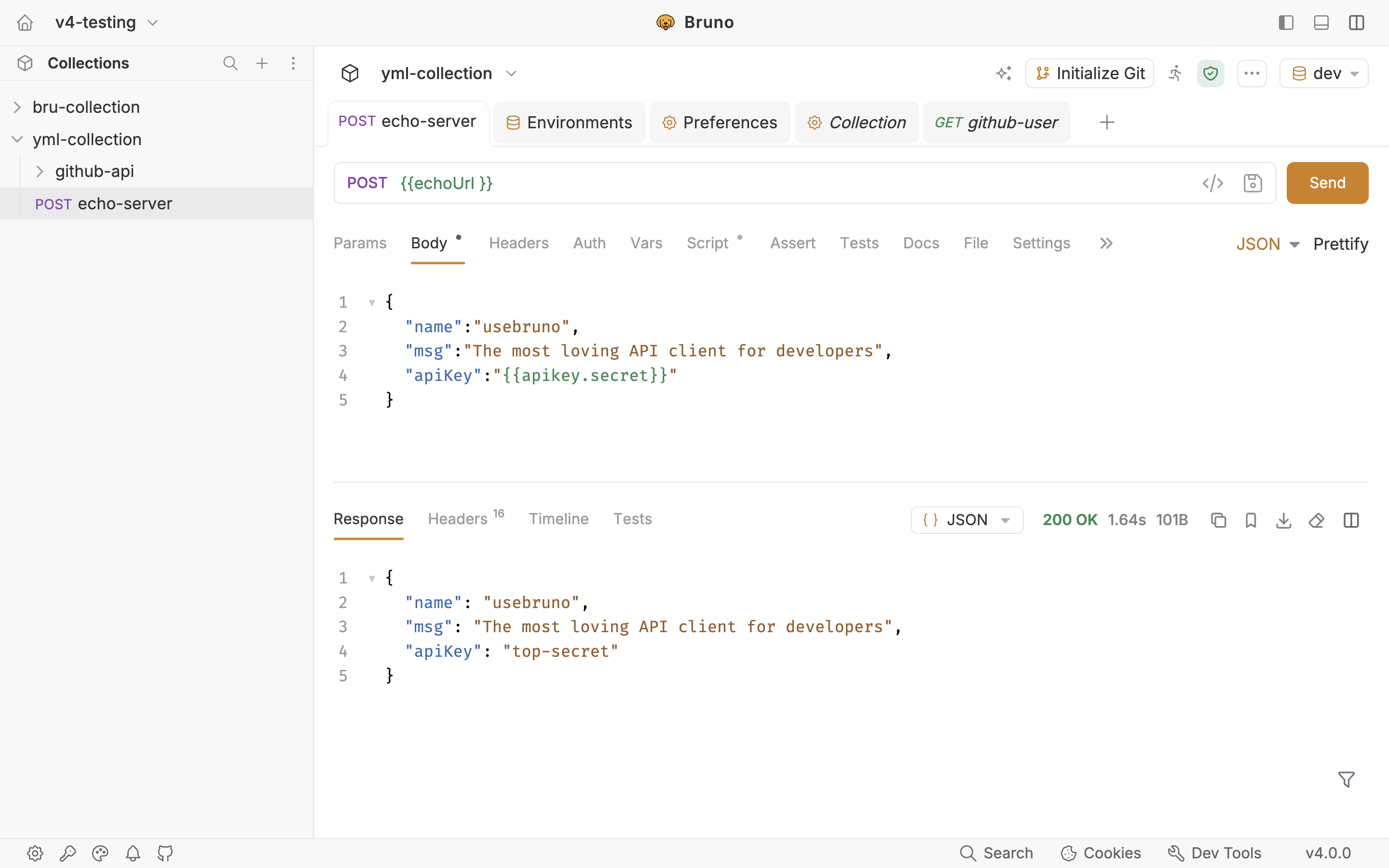
Use these in any URL, header, body, or auth field and Bruno resolves them at runtime:
Step 4 - Run with the CLI
Export credentials from Preferences → Secrets Manager → Export as .env, then run:
# Local CLI testing -  Token auth
bru run collection/ --env Production --env-var authToken=your-vault-token

# AppRole auth
bru run collection/ --env Production \
  --env-var roleId=your-role-id \
  --env-var secretId=your-secret-id

# Bruno v4 env flag: --secrets-env-file
bru run collection/ --env Production --secrets-env-file hashicorp-secrets.env
Configure AWS Secrets Manager
AWS Secrets Manager is the native secret store for AWS workloads. It supports automatic rotation, fine-grained IAM policies, and is deeply integrated with RDS, Lambda, ECS, and other AWS services.
Step 1 - Add the provider in Preferences
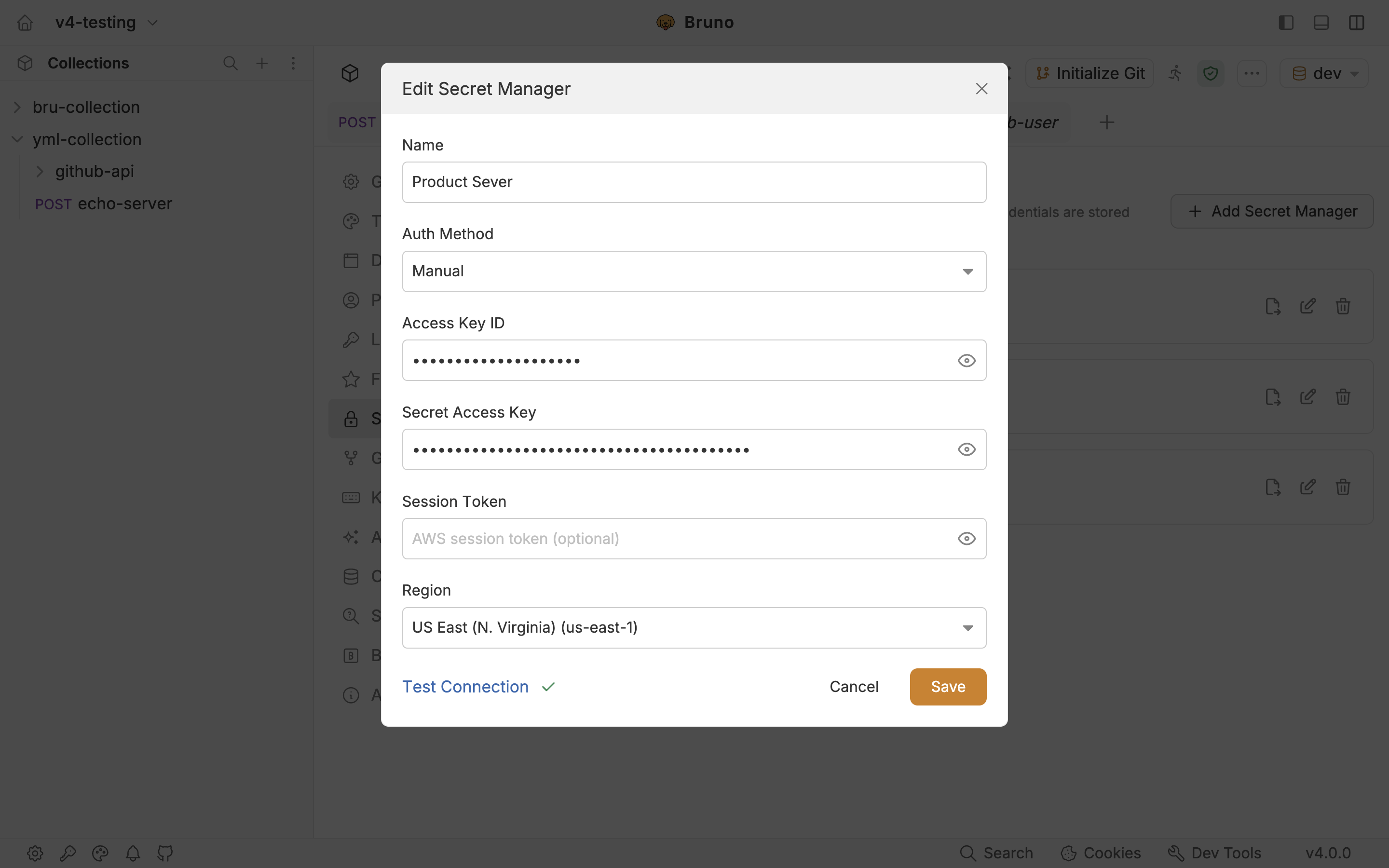
Preferences → Secrets Manager → + Add Secret Manager. Select AWS Secrets Manager.
Choose your auth mode:
- Manual - enter Access Key ID, Secret Access Key, optional Session Token, and Region.
- AWS CLI - uses your active AWS CLI session (
aws configureor environment variables).
Click Test Connection, then Save.
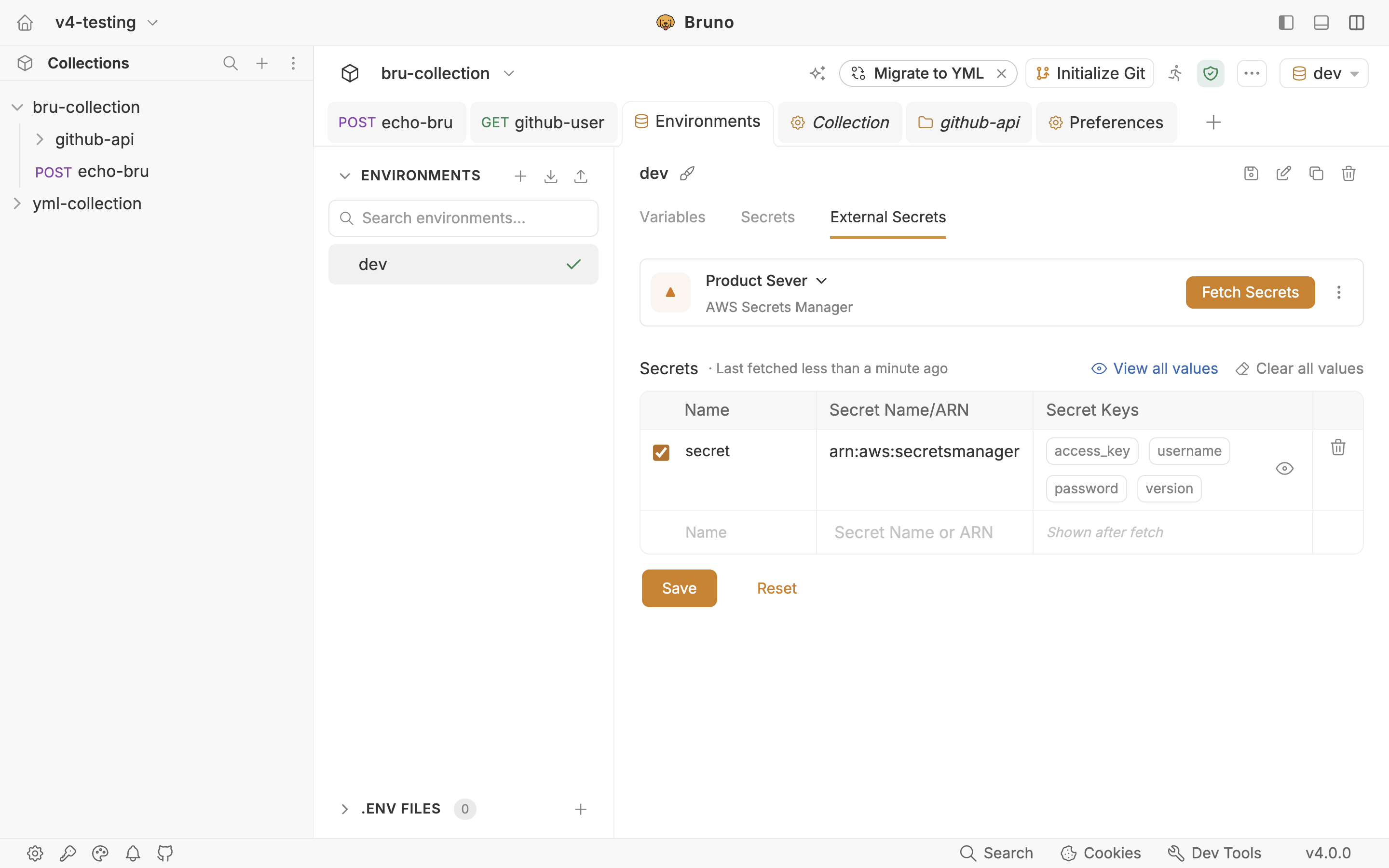
Step 2 - Attach secrets to an environment
Open your collection → Environments → target environment → External Secrets tab.
Select your AWS account. Enter a Name (alias, e.g. apiCredentials) and the AWS Secret Name or ARN.
Click Fetch Secrets.
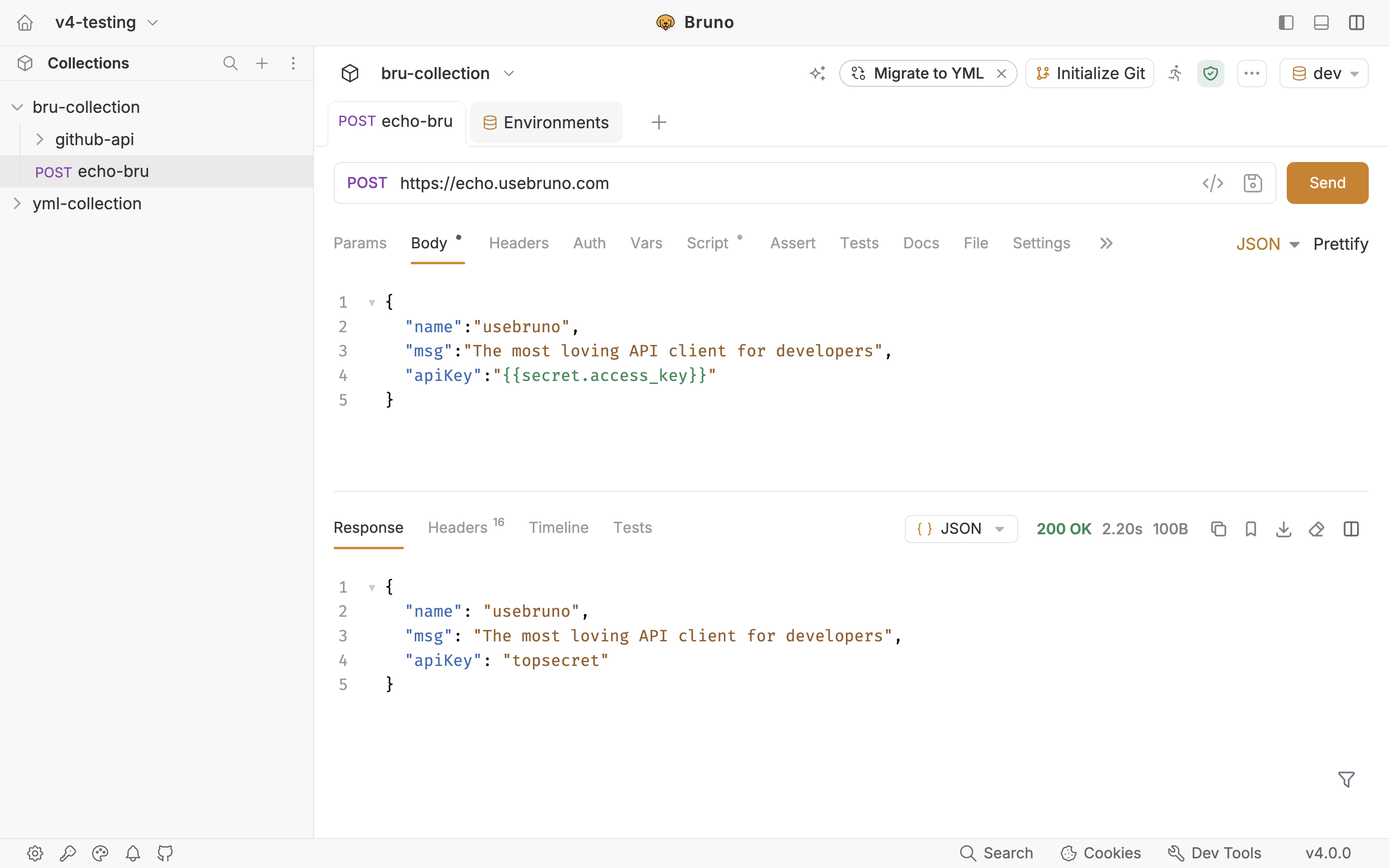
Step 3 - Reference secrets in requests
Key names match the JSON keys inside the AWS secret:
Step 4 - Run with the CLI
Export from Preferences → Export as .env, or create the dotenv file manually:
# Bruno exported .env file

BRUNO_AWS_ACCESS_KEY_ID=<your-secret>
BRUNO_AWS_SECRET_ACCESS_KEY=
BRUNO_AWS_SESSION_TOKEN=
BRUNO_AWS_REGION=
bru run collection/ --env Production --secrets-env-file ./secrets.envSetting Up Azure Key Vault
Azure Key Vault is Microsoft's managed secret, key, and certificate store. It integrates with Azure Active Directory and supports both interactive (az login) and Service Principal authentication.
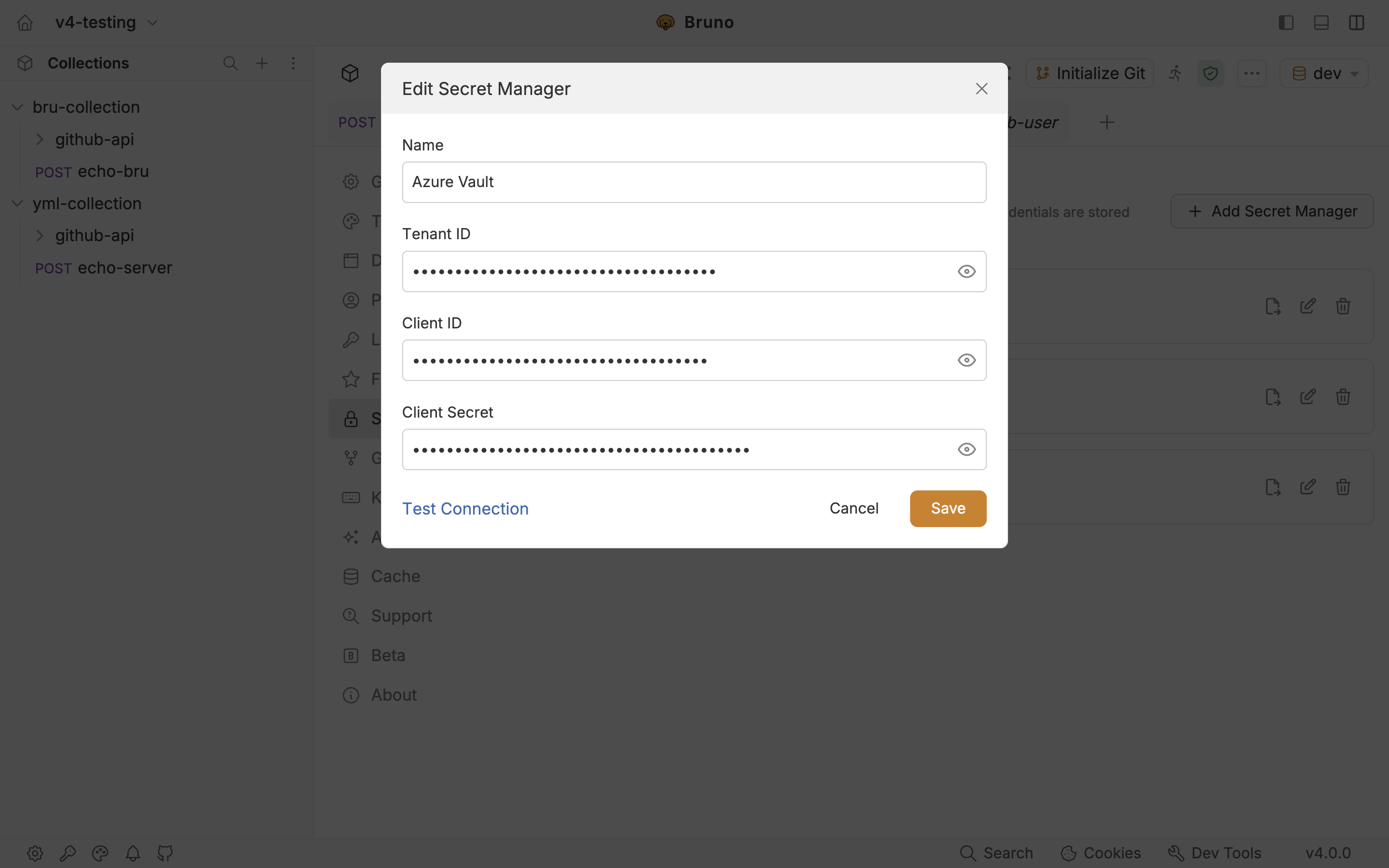
Step 1 - Add the provider in Preferences
Preferences → Secrets Manager → + Add Secret Manager. Select Azure Key Vault.
Choose your auth method:
- Manual (Service Principal) — enter Tenant ID, Client ID, and Client Secret.
Click Test Connection, then Add.
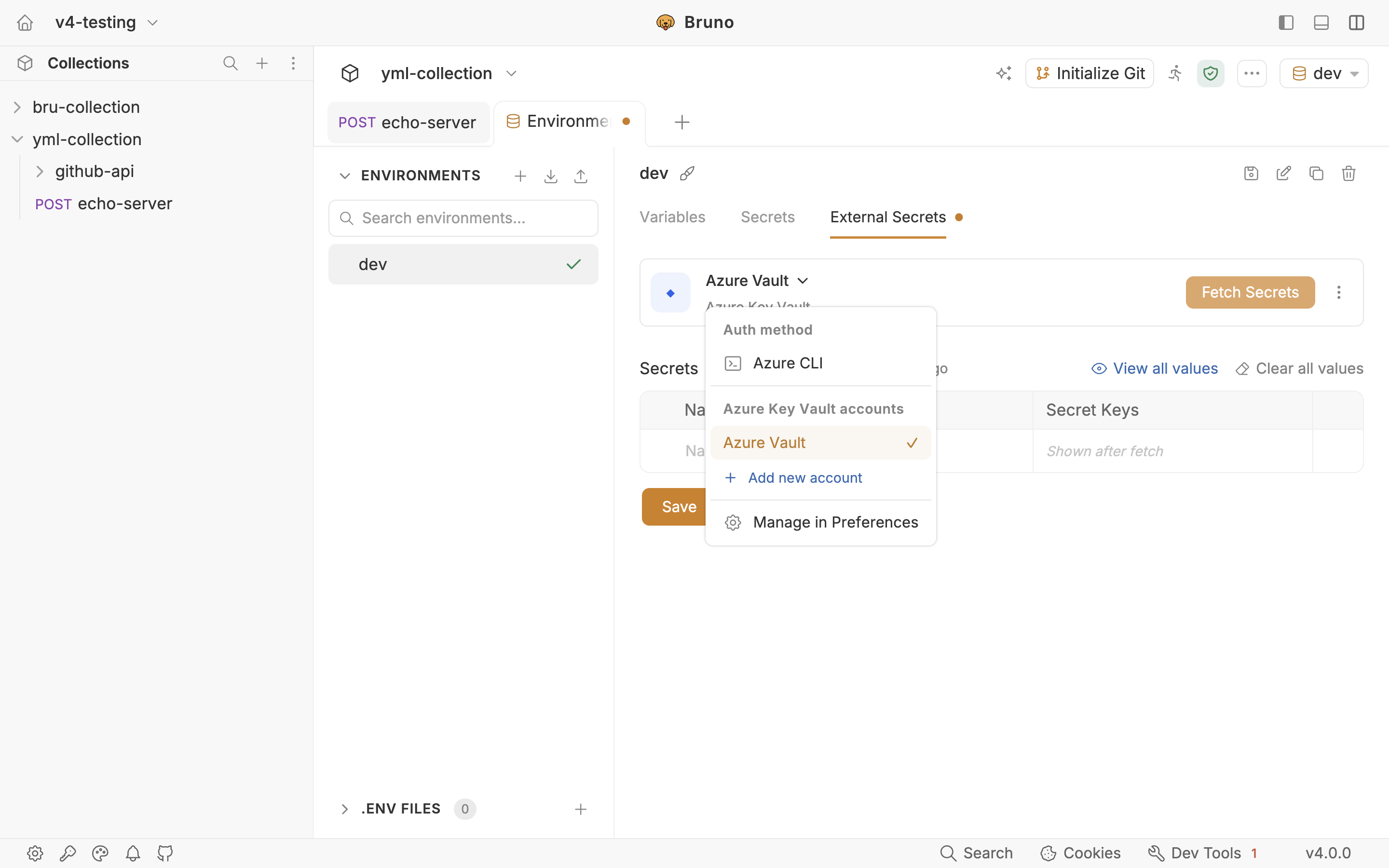
Step 2 - Attach secrets to an environment
Open your collection → Environments → target environment → External Secrets tab.
Select your Azure Key Vault account. Enter a Name (e.g. paymentSecrets) and the Vault Name (e.g. my-company-vault).
- Azure CLI — uses your active
az loginsession. No credentials to enter.
Click Fetch Secrets.
Step 3 - Reference secrets in requests
Key names match the secret names inside Azure Key Vault:
Step 4 - Run with the CLI
Service Principal:
BRUNO_AZURE_TENANT_ID=xxxxxxxx-xxxx-xxxx-xxxx-xxxxxxxxxxxx
BRUNO_AZURE_CLIENT_ID=xxxxxxxx-xxxx-xxxx-xxxx-xxxxxxxxxxxx
BRUNO_AZURE_CLIENT_SECRET=your-client-secret
Azure CLI (existing az login session):
BRUNO_AZURE_AUTH_METHOD=clibru run collection/ --env Production --secrets-env-file ./secrets.envTeam Workflow Tips
Conclusion
Bruno v4 connects your collections directly to the secret managers your team already uses. HashiCorp Vault, AWS Secrets Manager, and Azure Key Vault are all first-class providers, both in the app and in the CLI. Configuration lives alongside your environments in version-controlled files, and credentials never touch your collection source.
Bruno is an open-source, native API client built for developers who want speed, privacy, and control. It's the fastest-growing API client in its space and v4 is the release where it stops being just a request tool and starts being the development platform your whole team can build on.
Explore the full documentation