

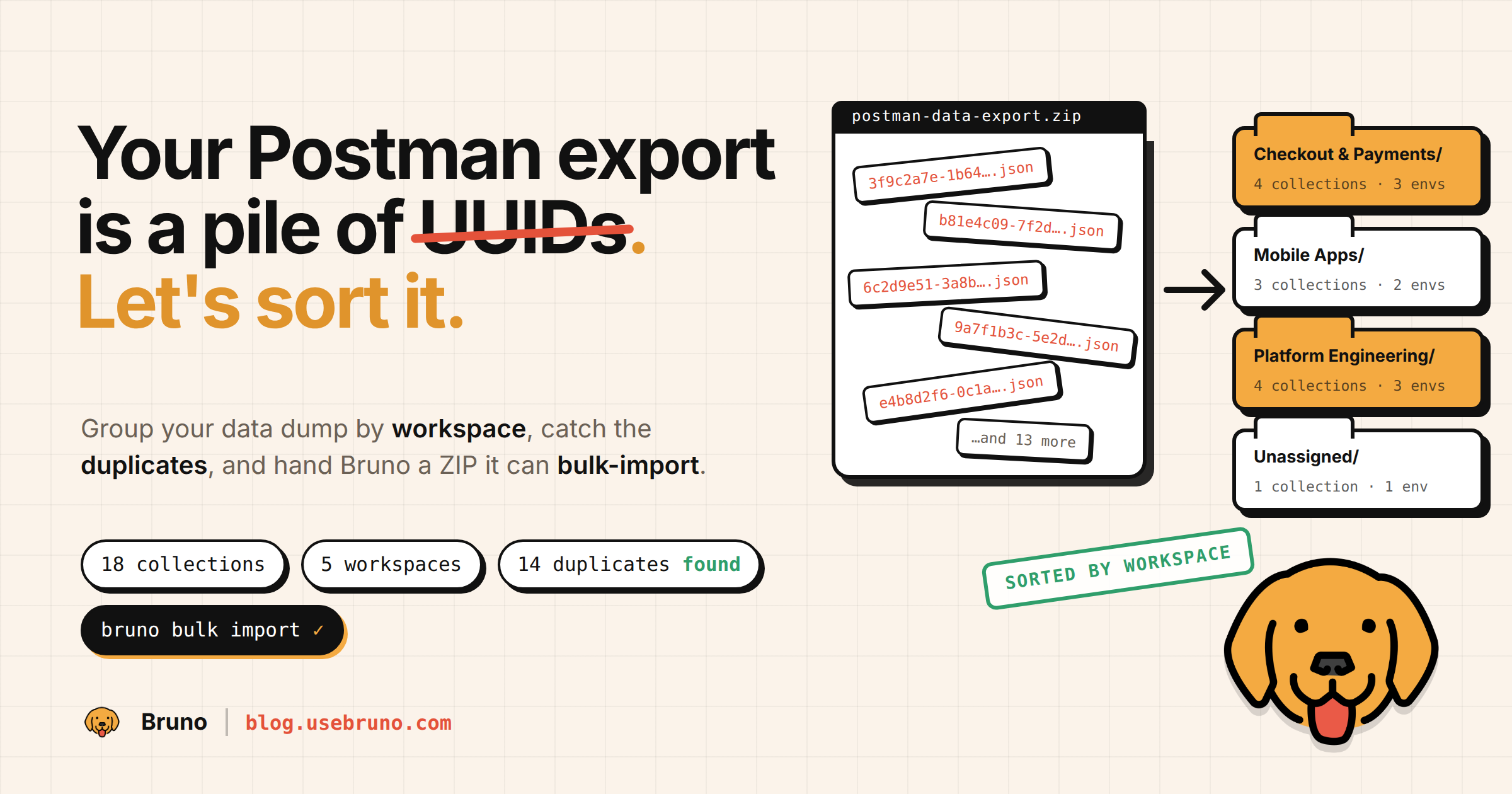
Most teams that come to Bruno are leaving Postman, and the first thing they run into isn't Bruno at all. It's getting their data out of Postman in a shape anyone can work with.
If you have three collections, this is a non-issue: export each one, import each one, done. If you have three hundred collections spread across a dozen workspaces, owned by people who left the company two reorgs ago, it's a real project. Postman's bulk export gives you everything in one zip, but it strips away the one thing that made the account navigable: the workspaces.
I ran into this enough times helping teams migrate that I built a small desktop app for it: the Postman Export Organizer. It reads a Postman data export (or pulls straight from the Postman API), regroups everything by workspace, flags duplicates, and exports a ZIP that Bruno can bulk-import in one step. It's free, open source, and everything runs locally on your machine.
This post walks through what Postman's export actually gives you, how the app fixes it, and a few migration patterns that fall out of having your data organized before you import it.
What you actually get when you export from Postman
Postman gives you two ways to get collections out, and both have sharp edges once an account gets big.
Option A: one collection at a time
The per-collection export is straightforward: open the collection's ··· menu, choose Export, and save the JSON (Bruno accepts both the v2 and v2.1 collection formats). It works well, and Bruno imports those files directly (Migrating from Postman).
The problem is arithmetic. Every collection is a separate export, a separate download, and a separate import. Environments are exported separately again, from the Environments sidebar. One Bruno user put it plainly in the GitHub issue asking for data-dump import: with 20-plus collections, repeating the per-collection dance for each one made the migration impractical (usebruno/bruno#3321). At 200 collections, nobody finishes.
Option B: the data export ("data dump")
The bulk option is Postman's data export. Per Postman's docs, you go to Settings → Account settings → Account → Export Data, pick collections and/or environments, and click Request Data Export. Postman emails you a download link when it's ready.
A few things about that flow worth knowing before you rely on it:
| Limitation | What Postman's docs say, and what it means in practice |
|---|---|
| It's not instant | "When the export is ready, you'll get an email with a link to download the bulk data file." In practice, large accounts wait. |
| The link expires | "The download is available for two days, after which it expires." |
| Not everyone can request one | "If you are on a team, only Admins and Super Admins can export bulk data." |
| Scope is per-person | "The data dump will include collections and environments from all workspaces you've created, including personal, private, team, and public workspaces." (Emphasis added.) Read literally, a workspace a teammate created isn't necessarily in your dump. |
| Only collections and environments | "You can export collections, environments, or both." Nothing in the export says which workspace each one belonged to, who owned it, or who had access. |
Quotes are from Export data from Postman — Postman Learning Center.
Inside the zip
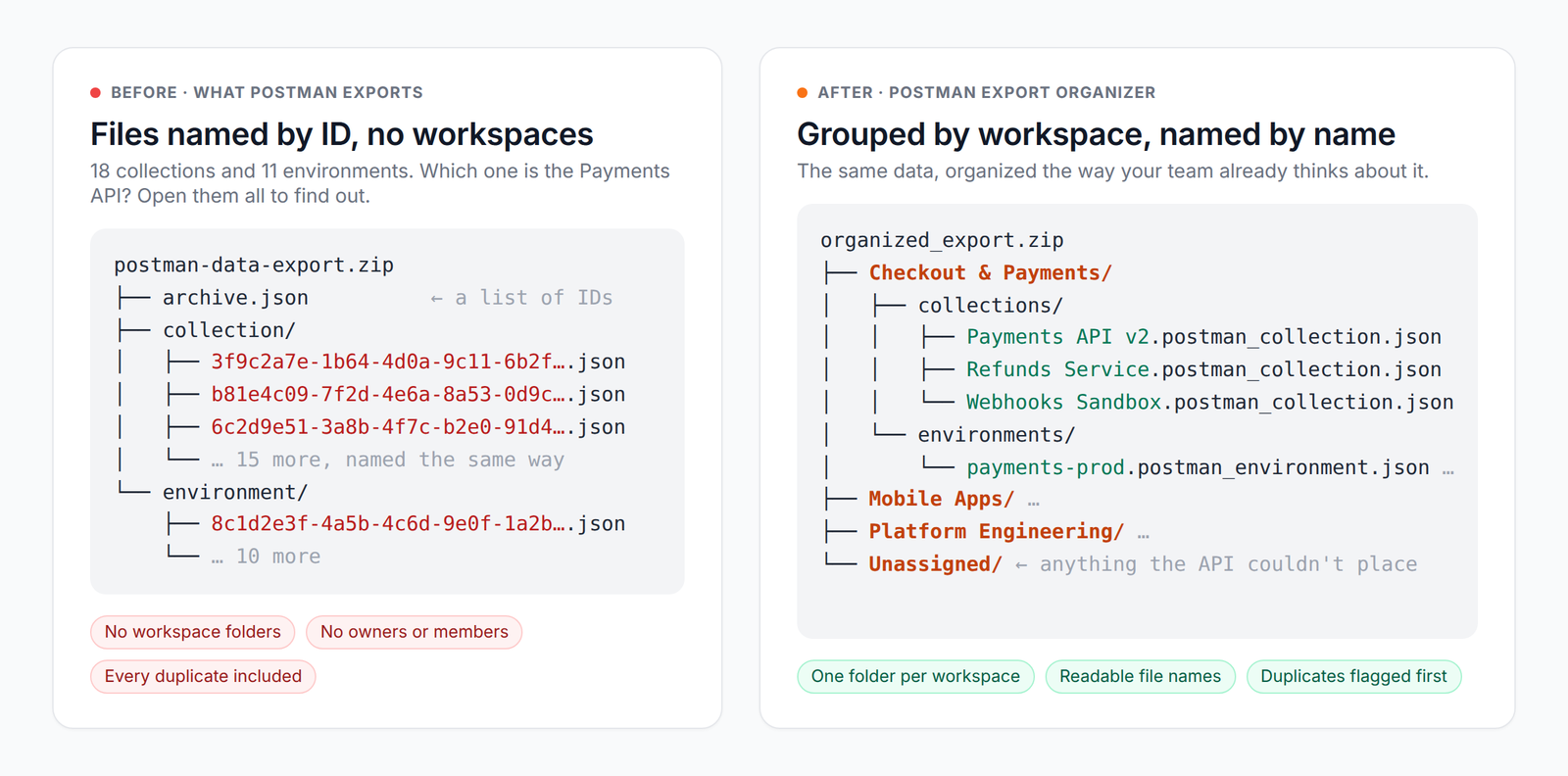
Then the download arrives and you unzip it. Here's the shape of what's inside:
postman-data-export.zip
├── archive.json          ← manifest: a list of IDs
├── collection/
│   ├── 3f9c2a7e-1b64-4d0a-9c11-6b2f8e4a7d31.json
│   ├── b81e4c09-7f2d-4e6a-8a53-0d9c1f7e2b44.json
│   └── …one file per collection
└── environment/
    ├── 8c1d2e3f-4a5b-4c6d-9e0f-1a2b3c4d5e01.json
    └── …one file per environment
Three things make this hard to work with:
- Files are named by Postman's internal ID, not by the collection's name. The name is inside the JSON (
info.name), so you have to open each file to find out what it is. With 200 files, that's an afternoon. - There is no workspace structure.
archive.jsonis just a list of IDs. The concept of "the Payments team's workspace" is gone; everything is one flat pile. - Everything comes along, including the mess. The three copies of "Untitled Collection", the fork somebody made to test one request in 2023, the archived v1 API and its "backup" twin. If you import the zip as-is, you import all of it.
None of this is a bug. Postman's export is a backup format, designed to be re-imported into Postman. It just isn't a migration format, and it isn't a format a human can review.
Meet the Postman Export Organizer
The Postman Export Organizer is a desktop app (macOS, Windows, Linux) that takes that pile and puts the structure back. It uses the Postman API to ask which workspace each collection and environment lives in, who owns the workspace, and who's a member, then lets you explore, filter, and export the result.
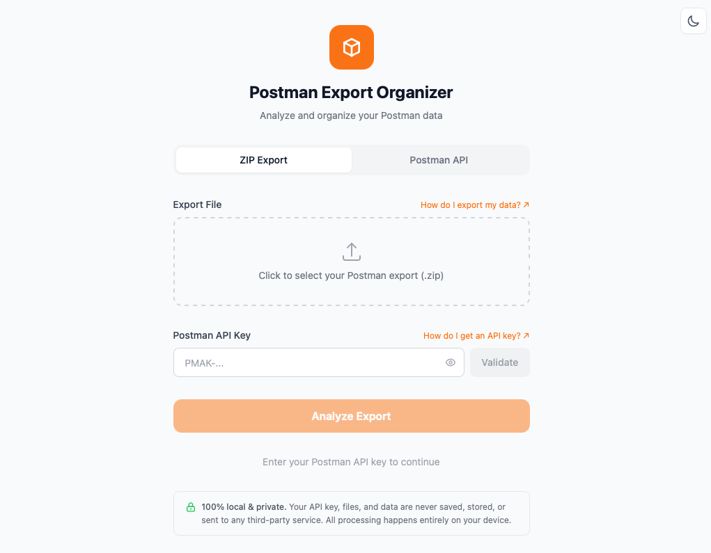
Note: It's an independent, community-built tool. It isn't maintained or endorsed by Postman, and while I work at Bruno, it isn't an official Bruno product either. It's MIT-licensed and the code is on GitHub if you'd like to audit or contribute.
| What it does | How |
|---|---|
| Two data sources | Load a Postman data export .zip, or skip the export entirely and fetch everything through the Postman API with your API key. |
| Workspace grouping | Collections and environments are matched to workspaces via the Postman API. In ZIP mode, anything in the export that the API can't place lands in an Unassigned bucket, so nothing silently disappears. |
| Owner and member info | Each workspace shows its owner and members with their roles (admin, editor, viewer), resolved through the Postman API. |
| Duplicate detection | Exact duplicate requests (same method + URL), possible duplicates (same URL, different method), duplicate collection names, and collections with an identical set of requests. Detected within each workspace. |
| Filters | Search by workspace name; filter by workspace type, duplicate status, or owner; hide anything not updated in the last 3/6/12/24 months (or since a date you pick); hide empty collections, environments, and workspaces. |
| Four export formats | Organized folders (readable names, one folder per workspace), Bruno Bulk Import ZIP, a JSON report, and a CSV summary. The two ZIPs can be exported for everything, for a single workspace, or for everything owned by one person; the reports cover everything that passes your filters. |
| 100% local | Your API key lives in memory only. The only network calls are to api.getpostman.com, and only when you validate a key or run an analysis. No telemetry. |
Before you start: prerequisites
- A Postman API key. Both modes need one, because workspace membership isn't in the export. Generate one at Settings → Account settings → API keys → Generate API Key, or directly at go.postman.co/settings/me/api-keys (Postman docs). Keys start with
PMAK-. The key can see whatever your Postman account can see, so use your own. - A Postman data export (ZIP mode only). Request it as described above and download the zip within two days. If you can't request one (you're not a team admin) or don't want to wait, use API mode instead.
- The app. Download the installer for your platform from the releases page. The current version is v0.3.0.
- A current Bruno if you want to bulk-import the result. The app targets Bruno 3.5 and later for its Bulk Import ZIP, and bulk import from a Postman data export is part of Bruno Ultimate Edition. (The Organized folders export works with any Bruno edition: each file is a standard Postman collection or environment JSON, and Bruno's Import Collection dialog accepts several collection files at once.)
macOS note: the app isn't code-signed yet, so Gatekeeper will tell you it's "damaged and can't be opened" the first time. It isn't damaged. Clear the quarantine flag and open it again:
$ xattr -cr "/Applications/Postman Export Organizer.app"On Windows, SmartScreen may show a warning for the same reason. Choose More info → Run anyway. Linux users get an AppImage, .deb, and .rpm.
Step 1: Pick a data source
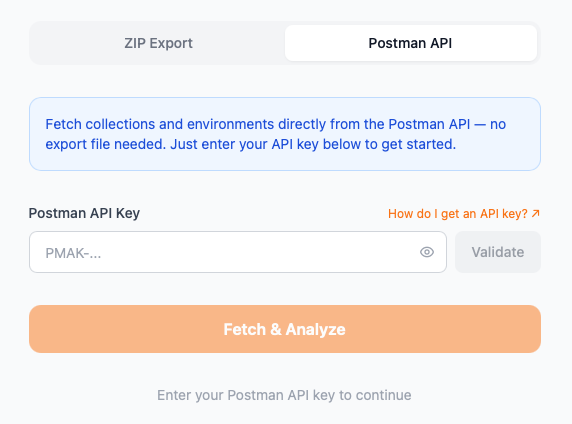
Open the app. The first screen asks where your data should come from.
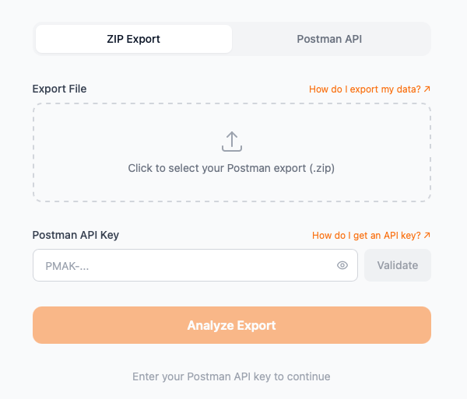
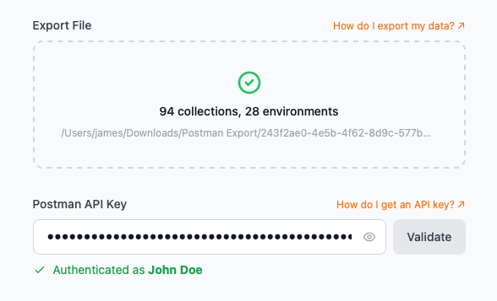
ZIP Export is the right choice for a one-time migration or when you want a complete offline snapshot. Click the upload area, pick the .zip Postman emailed you, and the app parses it on the spot. You'll see how many collections and environments it found before anything else happens.
Postman API mode skips the export entirely. The app lists your workspaces through the API and downloads each collection and environment directly.
Which one should you use?
| ZIP Export mode | Postman API mode | |
|---|---|---|
| Needs a data export | Yes | No |
| Works if you're not a team admin | Only if you can get someone to request the export | Yes, for whatever your key can see |
| Postman API calls used | A handful of list calls plus one per workspace | The same, plus one per collection and one per environment |
| Best for | One-time migrations, offline archives | Quick inventories, accounts where you can't get a data export |
Either way, paste your API key and click Validate. The app calls Postman's /me endpoint and confirms who you're authenticated as, so you know you're about to analyze the right account.
Step 2: Analyze
Click Analyze Export (or Fetch & Analyze in API mode). A progress bar shows what's happening: parsing the zip, fetching workspaces and team members, then mapping each workspace's collections and environments.
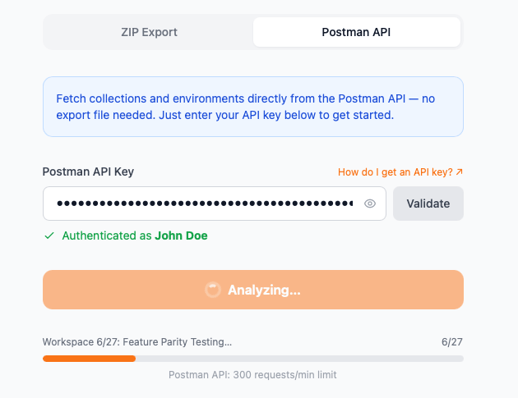
Under the hood this is a small number of Postman API calls. In ZIP mode it's one call per workspace plus a few list calls (workspaces, users, collections, environments). API mode adds one call per collection and per environment.
Postman caps API keys at 300 requests per minute and every plan has a monthly allowance, so if you have a very large account on a small plan, prefer ZIP mode. An account with 20 workspaces, 150 collections, and 30 environments needs roughly 25 calls in ZIP mode and roughly 200 in API mode. The app doesn't pace itself against the limit, so on a very large account in API mode a few fetches can fail and get skipped; when that happens, run it again.
Step 3: Explore your account by workspace
This is the screen that makes the difference. Instead of a flat list of UUIDs, you get your Postman account the way your team thinks about it.
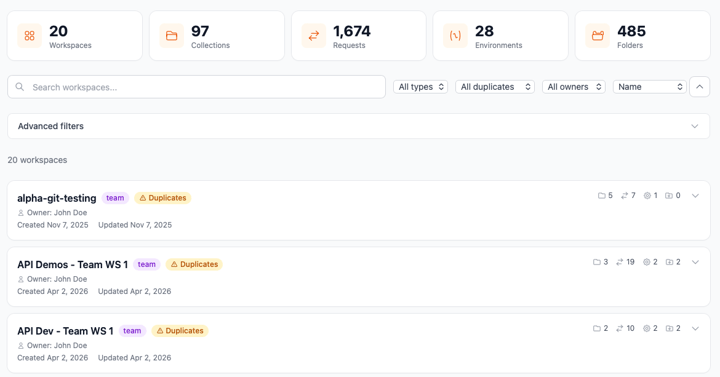
At the top, the totals: how many workspaces, collections, requests, environments, and folders you're dealing with. That number alone is useful in a migration kickoff.
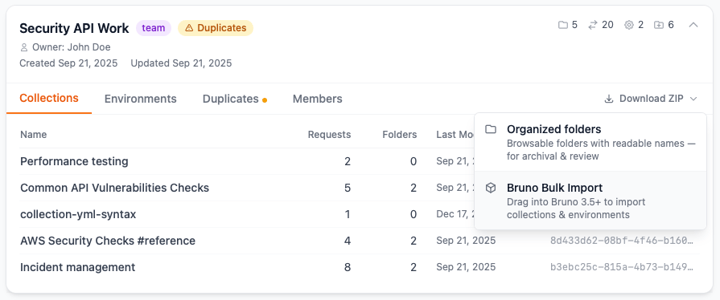
Below that, one card per workspace, with its type (personal, team, private, public, partner), its owner, how many members it has, when it was created and last updated, and the counts. Workspaces with duplicates get an amber badge. In ZIP mode, anything in the export that the Postman API couldn't place in a workspace your key can see shows up in an Unassigned card at the bottom (the sixth card in the screenshot), so nothing gets lost between the export and the analysis.
Expand a card to see what's inside.
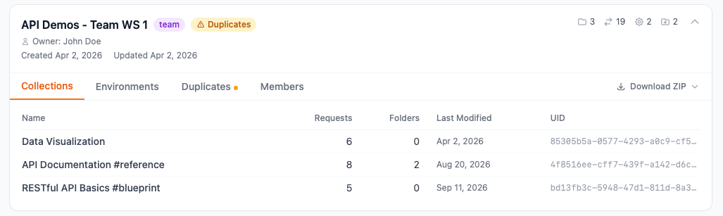
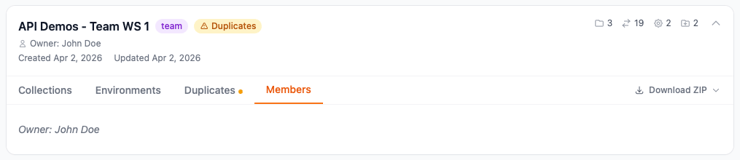
The Collections and Environments tabs list everything in the workspace, with request and variable counts. The Members tab shows who has access and with what role. This is the information Postman's export leaves out entirely, and it's exactly what you need when deciding who should own a collection on the Bruno side.
Step 4: Find the duplicates before you import them
Every long-lived Postman account accumulates copies. Someone forks a collection to test a change and never deletes it. Someone exports and re-imports and now there are two. Someone hits New Collection three times and never renames any of them.
The Duplicates tab surfaces these per workspace, in four flavors:
| Type | What it means |
|---|---|
| Exact request duplicates | Same HTTP method and the same URL appearing more than once in the workspace. URLs with a literal scheme and host are normalized first (host lowercased, query parameters sorted); URLs that start with a variable, the usual {{baseUrl}}/path shape, are compared exactly as written. Variables are never resolved. |
| Possible request duplicates | The same URL with different methods. In a REST API, GET /orders and POST /orders are usually intentional, so treat this list as a hint, not a verdict. |
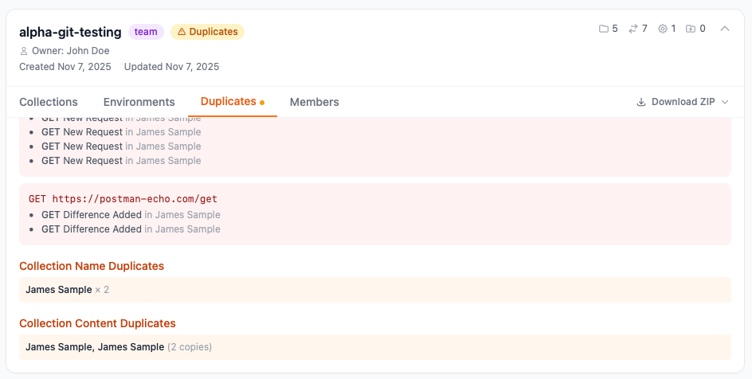
| Collection name duplicates | Two or more collections in the workspace with the same name. Hello, "Untitled Collection". |
| Collection content duplicates |
Collections whose full set of method + URL pairs is identical. This is the "Dana's copy" case. |
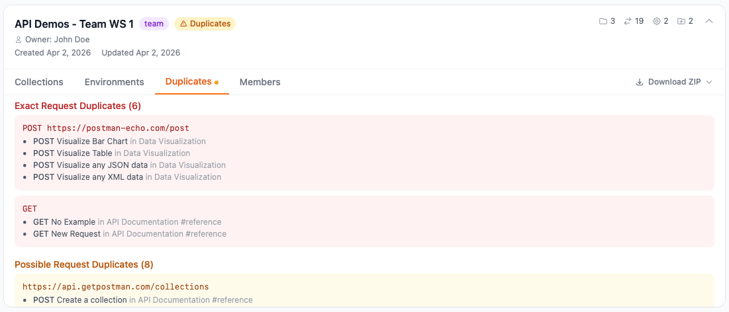
Exact duplicates are traced back to the collection and folder of each occurrence, and possible duplicates to their collection, so you can decide what to do with each one: delete the copy in Postman before exporting, skip it at import time, or keep it deliberately.
Step 5: Filter down to what's worth migrating
You rarely want to migrate everything. The filter bar and the Advanced filters panel let you narrow the view, and the advanced filters flow through to every export you make afterwards, so what you see is what you get.
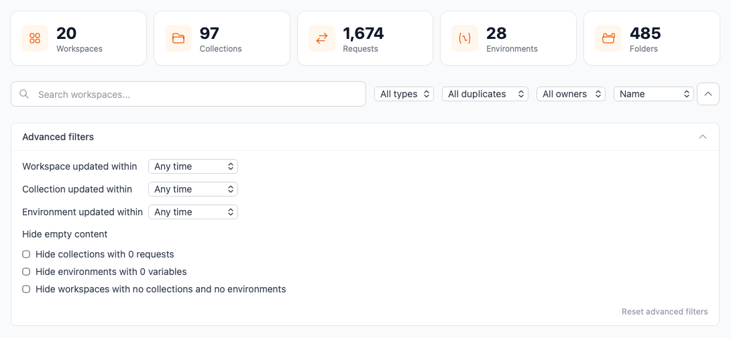
Some combinations I reach for:
- Collection updated within: Last 12 months + Hide collections with 0 requests + Hide workspaces with no collections and no environments — the "only what's alive" view. Archived projects and abandoned scratch collections disappear.
- Filter by owner — show only workspaces owned by one person, then use the "Download ZIP for <owner" button that appears to export just their share. Handy when each team lead is responsible for migrating their own area.
- Has duplicates — find the workspaces that need a clean-up conversation before anything gets imported.
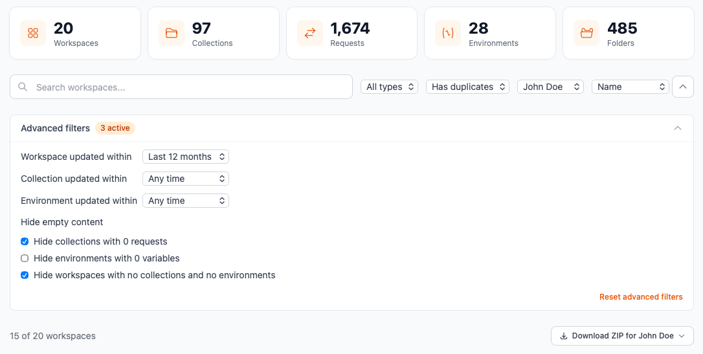
The quick filters (search, type, duplicates) only change what's listed. The owner filter also drives the per-owner download, and the advanced filters (dates and "hide empty") change what gets exported from the panel at the bottom, so set those first.
Step 6: Export
The Export panel at the bottom of the explorer offers four formats. Every workspace card also has its own Download ZIP menu for exporting just that workspace.
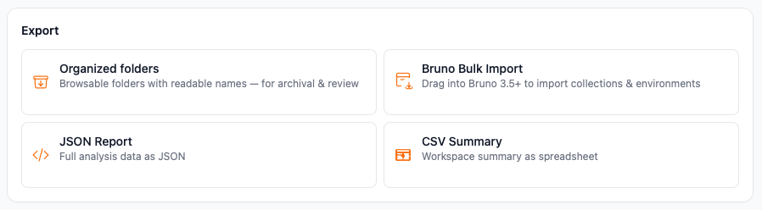
Organized folders
A zip with one folder per workspace and human-readable file names. This is the format for archiving in Git, handing to a colleague for review, or importing into any tool one collection at a time:
organized_export.zip
├── Checkout & Payments/
│   ├── collections/
│   │   ├── Payments API v2.postman_collection.json
│   │   ├── Refunds Service.postman_collection.json
│   │   └── Webhooks Sandbox.postman_collection.json
│   └── environments/
│       ├── payments-dev.postman_environment.json
│       └── payments-prod.postman_environment.json
├── Mobile Apps/
│   └── …same layout
├── Platform Engineering/
│   └── …
└── Unassigned/
    └── …anything the API couldn't place in a workspace
Characters that aren't safe in file names (/ \ : * ? " < > |) become _, and if two collections in a workspace share a name, the second becomes Name_2. The JSON inside is not modified: in ZIP mode it's the exact bytes from Postman's export, and in API mode it's the collection object from the Postman API response, saved as pretty-printed JSON (same content; formatting and key order may differ).
Bruno Bulk Import
A zip in the same layout as a Postman data export (archive.json, collection/, environment/), rebuilt from only the workspaces and collections that survived your filters, with a collection that appears in several workspaces included once. Bruno reads this directly through Import Collection (the app targets Bruno 3.5 and later), so you can go from "messy Postman account" to "clean set of Bruno collections" in one import. That's the next step.
JSON Report and CSV Summary
The JSON Report is the full analysis: every workspace, member, collection, environment, and duplicate group. The CSV Summary is one row per workspace with the counts (collections, requests, folders, environments, exact and possible duplicates, duplicate collection names and contents), which drops straight into a spreadsheet for the migration plan or the status update to whoever is paying for the Postman seats. Both reflect the advanced filters you've set, with one exception: duplicate counts are always computed on the full workspace.
Step 7: Import into Bruno
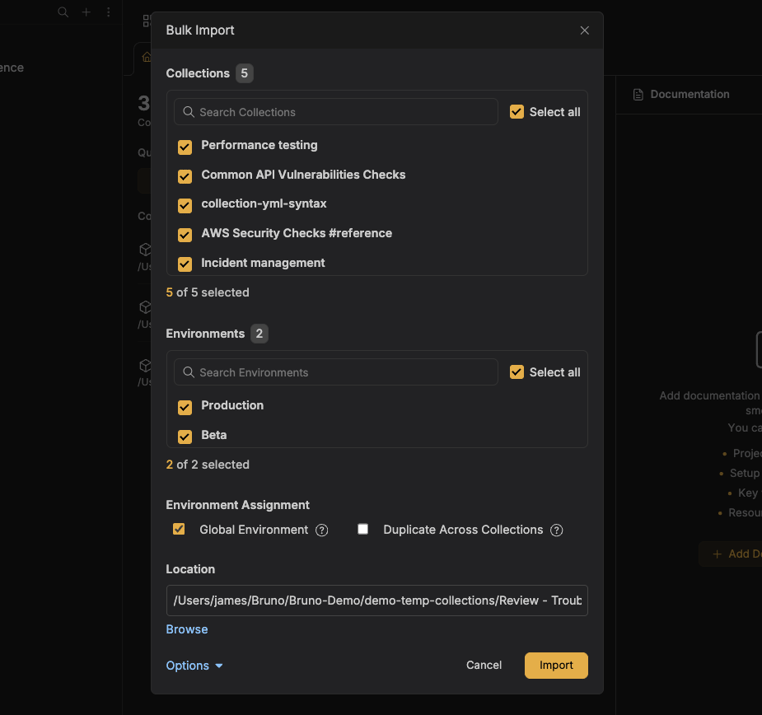
With the Bruno Bulk Import ZIP saved, open Bruno and follow the data dump flow from Migrating from Postman:
- Click the + in the sidebar (or Import Collection on the home screen) and choose Import Collection.
- Select the ZIP you just exported.
- Bruno lists every collection and environment in the ZIP with everything selected. Untick anything you don't want.
- Tick how environments should land: Global Environment (checked by default) makes them available across collections; Duplicate Across Collections copies them into each collection. You can pick both.
- Click Import.
Bruno translates common Postman script APIs (pm.test, pm.environment, pm.globals, pm.collectionVariables, pm.response, and more) to their Bruno equivalents during import. The Scripts Translator page lets you paste a Postman script and see exactly how Bruno will translate it; it runs the same converter the importer uses. If your scripts reference npm packages, Bruno detects pm.require() and require() calls and offers to install them after the import.
Note: Bulk import from a Postman data export is included in Bruno Ultimate Edition. If you're on a different edition, use the Organized folders export instead: open Import Collection, select a workspace's .postman_collection.json files (you can pick several at once), and import environments from Bruno's environment settings. The organized names make that a lot less painful than it would be from the raw dump.
Migration patterns this unlocks
Once your Postman data is grouped and filtered, a few migration strategies become easy that were hard before.
The whole account in one go. Analyze, apply the "only what's alive" filters, export a single Bruno Bulk Import ZIP, import into Bruno. Everything else stays behind in Postman, which is where you wanted it anyway.
Team by team. Expand the Payments workspace, click its Download ZIP → Bruno Bulk Import, and hand that one ZIP to the Payments team. They migrate on their schedule, and their Bruno collections land in their repo. Repeat per team. Because each workspace is its own ZIP, you're not asking anyone to pick their collections out of a 300-item list.
Owner hand-off. Filter by owner and use Download ZIP for name. Each person gets a ZIP of exactly the workspaces they own. Good for the "everyone migrates their own stuff by Friday" model, and for finding the workspaces whose owner no longer works there.
Clean up first. Use the Duplicates tab to decide what to delete in Postman before the migration. Every copy you don't import is a copy nobody has to maintain in Git later. Bruno stores collections as plain files, so a duplicate collection in Bruno is a duplicate directory in your repo forever.
Archive before you cancel. The Organized folders export is a readable, browsable backup of every collection and environment in your Postman account, with the workspace structure preserved. Commit it to a repo before you close the Postman account. Six months from now, when someone asks "didn't we have a collection for the old partner sandbox?", you can answer without a Postman login.
Get the data even if you're not the admin. Only Postman team admins can request a data export. If that's not you, API mode fetches everything your own key can see, no admin required, no email to wait for.
Scope the migration before you commit to it. The CSV summary gives you a per-workspace inventory in about a minute: how many collections, how many requests, how many are duplicates, and, if you set the "updated within" filter first, how many were touched in the last year. That's the number you need for the migration plan, and for the conversation about how many Postman seats you're still paying for.
Good to know and current limits
- Duplicate detection is per workspace. Two identical collections in two different workspaces won't be flagged against each other. The Organized folders export makes those easy to spot by eye, since the names sit side by side.
- "Owner" means the first member with the admin role, falling back to the workspace's creator when there's no named admin. For a personal workspace, that's normally you.
- "Possible duplicates" are hints. Same URL, different method is normal REST. The list is there so you can scan it, not so you can act on every row.
- Duplicate counts ignore your filters. Hiding old or empty collections narrows the lists and the exports, but the duplicate figures on each card and in the reports are always computed on the full workspace. Months in the age filters are 30-day approximations.
- Timestamps come from the API when they can. Postman's data export often omits
createdAt/updatedAt, so the app fills them in from the Postman API's collection and environment listings. If a date can't be determined, the age filters will hide that item once they're active. - The Unassigned bucket is a signal. In ZIP mode it holds anything in your export that the API didn't place in a workspace your key can see. A large Unassigned bucket usually means the export was requested by someone with broader access than the key you're using. API mode has no Unassigned bucket: it only contains what it could fetch.
- Names are sanitized for the filesystem. Slashes, colons, and similar characters in collection or workspace names become underscores in the Organized folders export. The names inside the JSON are unchanged.
- Nothing leaves your machine. The API key is held in memory and discarded when you quit. The only network destination is
api.getpostman.com. Exports are written only where you choose in the save dialog. - Installers are unsigned for now. See the macOS and Windows notes above.
Troubleshooting
| Symptom | Fix |
|---|---|
| macOS says the app is "damaged and can't be opened" | Gatekeeper rejecting an unsigned app. Run xattr -cr "/Applications/Postman Export Organizer.app" and reopen. |
Validate fails with API returned 401 |
The key is wrong, revoked, or expired. Generate a new one at go.postman.co/settings/me/api-keys. Keys start with PMAK-. |
Members show as User 12345 instead of names |
The app couldn't read your team's user list (Postman's GET /users isn't available to every plan or role). Roles still show; only the display names are missing. |
| Some workspaces are missing, or Unassigned is large | Your key doesn't have access to those workspaces, or a workspace call failed (for example, rate-limited) and was skipped. In ZIP mode the skipped workspace's items land in Unassigned; in API mode they're left out. Re-run with the right account, or wait a minute and analyze again. |
| API mode is slow | It makes one call per collection and environment, and Postman caps keys at 300 requests per minute. For big accounts, request a data export and use ZIP mode. |
| Bruno doesn't offer the bulk import dialog | Bulk import from a Postman data export needs Ultimate Edition and a current Bruno (the app targets 3.5+). Otherwise, use the Organized folders export and import the collection files through Import Collection. |
Wrapping up
Postman's export is fine as a backup and rough as a migration. It gives you every collection you've ever created, named by ID, in one flat pile, with the workspaces, owners, and members left behind. The Postman Export Organizer puts that structure back, shows you the duplicates and dead weight before you carry them over, and hands you a ZIP that Bruno imports in one step.
If you're planning a move, the order of operations that has worked best for the teams I've helped is: analyze, filter down to what's alive, clean up the duplicates in Postman, export per team, and import into Bruno. It turns a week of clicking into an afternoon, and what lands in Bruno is what you actually use.
- Download the app: github.com/james-ha-bruno/postman-export-organizer-app/releases
- Docs: Postman Export Organizer and Migrating from Postman
- What converts: Scripts Translator
- Found a bug or want a feature? Open an issue on the app repo.
And if you're looking at a migration with hundreds or thousands of collections and want a hand, reach out to support@usebruno.com. We do this a lot, and we're happy to help.
If you're evaluating Bruno for your organization, whether that's Ultimate Edition for bulk import, a dedicated migration plan for your teams, or a partnership, talk to our sales team and we'll map out the move with you.

.png)