.png)
Most API clients were built around cloud-based collaboration: you sign in, your collections live on someone else's servers, and your team shares access through accounts and permissions. That model is convenient at first, but it creates friction around versioning, ownership, audit trails, and keeping API tests in sync with the code they exercise.
Storing API data in the cloud can introduce additional security considerations, especially around credentials, access control, and accidental exposure.
Bruno takes a different path. Collections are plain files on disk, and collaboration happens through Git, the same version control system your engineering team already uses. This guide explains why that matters, how the three Git strategies in Bruno work, and which one fits your team.
Table of Contents
- What API Collaboration Looks Like Today
- Why Bruno Uses Git for Collaboration
- New to Version Control? Start Here
- The Three Git Strategies in Bruno
- Strategy 1: Workspace-Level Git
- Strategy 2: Collection-Level Git
- Strategy 3: Hybrid (Workspace + Linked Collections)
- Which Strategy Should You Choose?
- Sharing Collections (Provider Workflow)
- Consuming Collections (Consumer Workflow)
- Quick Reference
- Wrap Up
What API Collaboration Looks Like Today
When teams collaborate on APIs in a traditional cloud-based client, the workflow usually looks like this:
Everyone works against a central account. Changes are synced through the vendor's servers. Collaboration is tied to subscriptions, login sessions, and whatever export format the tool provides.
That model works for quick sharing, but teams commonly run into these problems:
- No real version history — you cannot see who changed a header, when a URL was updated, or roll back a bad edit with the same confidence you get from Git.
- Collections drift from code — API tests live in the cloud while application code lives in a repo. They evolve separately and fall out of sync.
- Vendor lock-in — collections are trapped in a proprietary format. Moving teams or tools means painful exports.
- Secrets and environments are risky — sensitive values end up in shared cloud workspaces unless everyone is careful about what gets synced.
- Review is harder — there is no pull request for "we changed the login endpoint." Review happens in the app, not in your existing code review flow.
- Microservice teams collide — one shared workspace for auth, email, OTP, and payments means unrelated teams step on each other's collections.
Bruno was designed to fit naturally into developer workflows. Instead of syncing collections to a cloud account, you store them as files and collaborate through Git, the same way you collaborate on source code.
Why Bruno Uses Git for Collaboration
Bruno is local-first. Collections are stored as plain YAML files on your file system. When you initialize Git, those files become a repository with full history, branches, and remotes on GitHub, GitLab, Bitbucket, or any Git provider.
This gives you several practical advantages:
Full audit trail
Every change is a commit with an author, message, and timestamp. Bruno even shows per-request Git history.
PR-based review
Push a branch, open a pull request, and review API changes the same way you review code.
Live alongside code
Keep collections in the same monorepo as the service they test, or in a dedicated repo linked to that service.
No vendor lock-in
Collections are open, readable files. Your Git remote is the source of truth, not a third-party account.
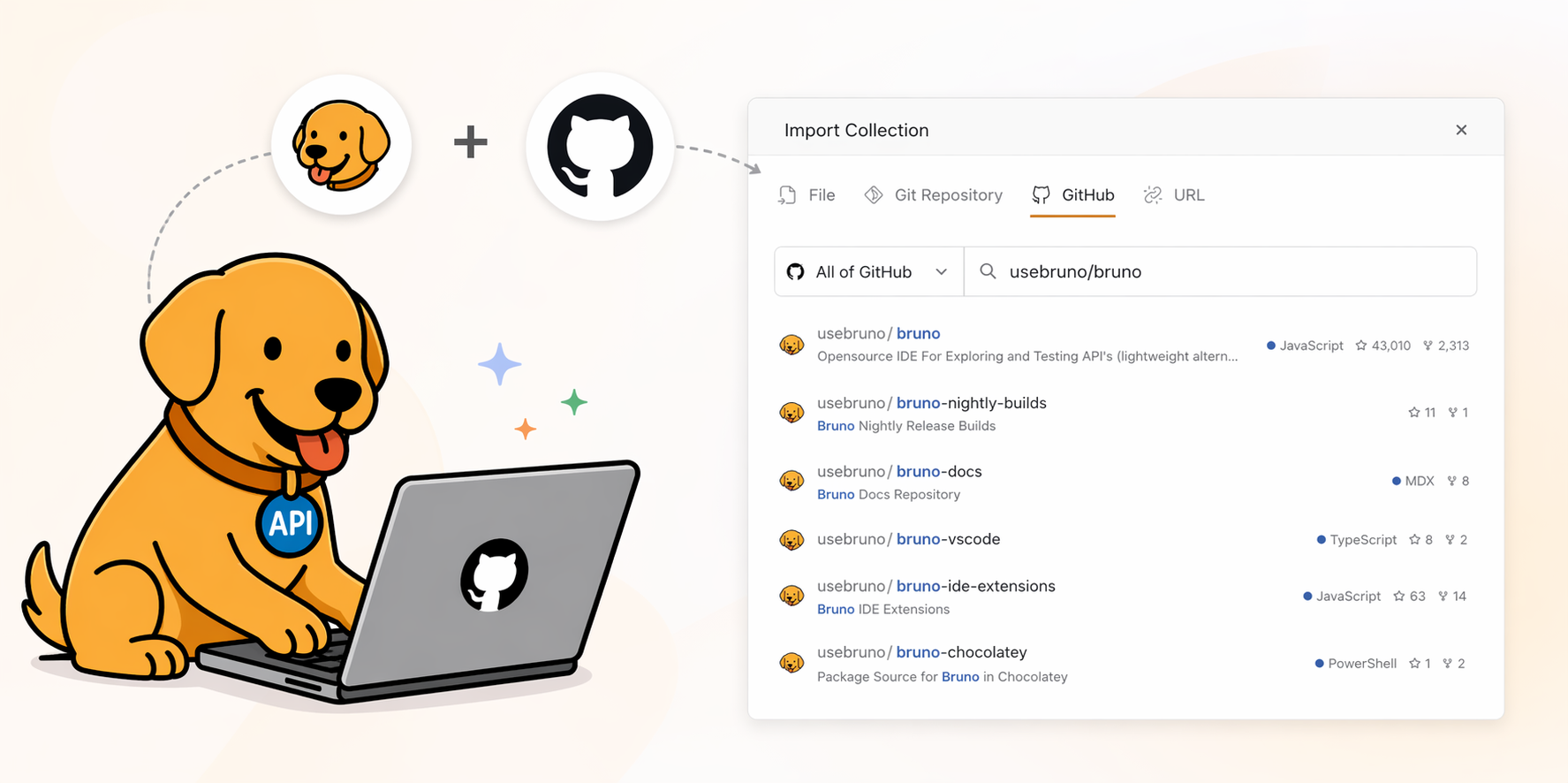
Bruno provides a built-in Git UI so you can initialize, diff, commit, push, pull, branch, stash, and resolve merge conflicts without leaving the app. Free features (from Bruno 3.0.0 onward) cover initialization, diffs, cloning, fetch, and pull.
New to Version Control? Start Here
A Version Control System (VCS) tracks changes to files over time. Instead of saving copies like api_v2_final.json, you keep one project and record meaningful checkpoints called commits.
The most widely used VCS today is Git. A few core ideas are enough to get started:
- Repository - your project plus its full history
- Commit - a saved checkpoint with a message
- Branch - a parallel line of work (e.g. feature branch)
- Remote - a shared copy on GitHub, GitLab, or similar
- Push / Pull - send your commits to the remote, or bring remote changes to your machine
If Git is new to you, read our beginner-friendly guide first: What Is Git? A Beginner's Guide to Version Control with Git. It covers commits, branches, remotes, and the mental model you need before diving into Bruno's Git workflows.
Git is not GitHub. Git is the tool that tracks history on your machine. GitHub, GitLab, and Bitbucket are services that host Git repositories online so teams can collaborate. Bruno works with any Git provider.
The Three Git Strategies in Bruno
Bruno supports three ways to organize Git around your API collections. Picking the right one early saves you from messy remote origin conflicts later. All three are documented in the official Choosing a Git Strategy guide.
Strategy 1: Workspace-Level Git
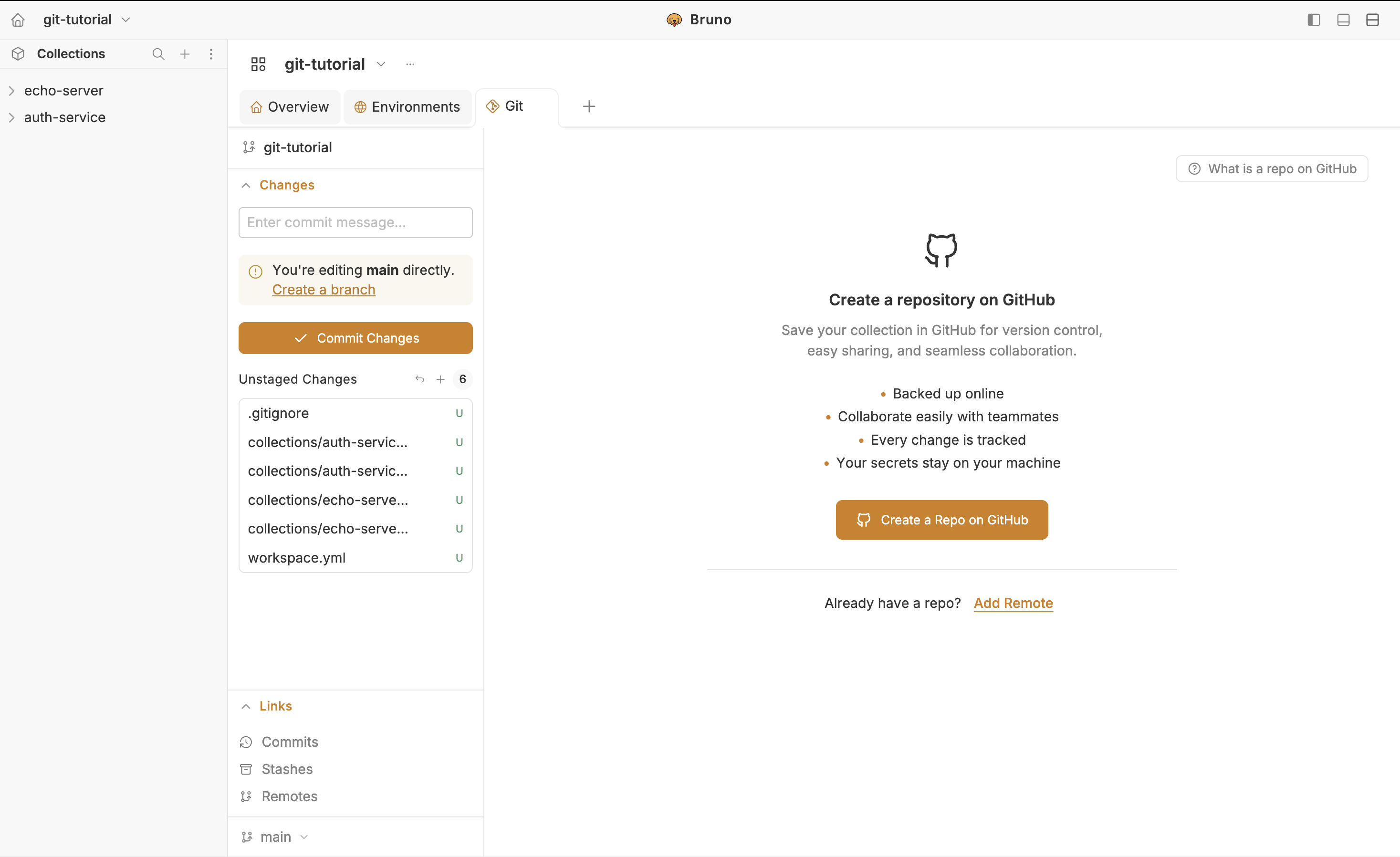
With workspace-level Git, you initialize Git at the workspace root. Every collection inside that workspace is tracked under a single repository one remote origin, one commit history, one place for your team to collaborate.
File structure
my-workspace/
├── .git/                        # Git repository at workspace root
├── workspace.yml
├── collections/
│   ├── auth-service/
│   │   ├── opencollection.yml
│   │   ├── environments/
│   │   │   └── development.yml
│   │   └── users/
│   │       ├── create-user.yml
│   │       └── get-user.yml
│   └── payment-service/
│       ├── opencollection.yml
│       ├── environments/
│       │   └── development.yml
│       └── orders/
│           └── create-order.yml
How to set it up
Open Bruno and go to your workspace.
Initialize Git at the workspace level via the Git panel or by running git init in the workspace directory.
All collections under that workspace are tracked automatically.
Push to your Git provider. Your team clones the workspace and opens it in Bruno.
Best suited for
- Monorepos where API collections live alongside your main source code
- Teams that want a single source of truth for all their API tests
- Projects where all services are tightly coupled and released together
- Platform or QA teams that own the full API surface area
Think of it as: one repo, one history, every collection in one place. Simple to reason about and easy to onboard new teammates.
Strategy 2: Collection-Level Git
With collection-level Git, you initialize Git inside a specific collection. Each collection has its own remote origin, completely independent of other collections.
File structure
auth-service/                    payment-service/
├── .git/                        ├── .git/
├── opencollection.yml           ├── opencollection.yml
├── environments/                ├── environments/
│   └── development.yml          │   └── development.yml
└── users/                       └── orders/
    ├── create-user.yml              └── create-order.yml
    └── get-user.yml
How to set it up
Open a collection in Bruno.
Click the Git icon in the top-right corner and click Initialize.
Connect the collection to its own remote (create a new GitHub repo from Bruno or add an existing remote URL).
Repeat for each service. Auth, email, OTP, and payments each get their own repo and their own access controls.
Best suited for
- Microservices architectures where each service is deployed and versioned independently
- Teams that own separate services (Auth team, Payments team, OTP team) and want isolated API test repositories
- Connecting a Bruno collection directly to an existing source code repository so it lives alongside that service
- Keeping sensitive or internal collections private to a specific team
Think of it as: one collection, one repo, one team. Maximum isolation and ownership per service.
Strategy 3: Hybrid (Workspace + Linked Collections)
The hybrid strategy lets you initialize Git at the workspace level while linking specific collections to their own independent Git remotes. Most collections stay under the workspace repo, but one or two can point to separate repositories — for example, a payment-service collection tied to the payments team's codebase.
File structure
my-workspace/
├── .git/                            # Workspace Git repository
├── workspace.yml
├── collections/
│   ├── auth-service/                # Tracked by workspace Git
│   │   ├── opencollection.yml
│   │   └── users/
│   │       └── create-user.yml
│   └── payment-service/             # Linked to separate Git repo
│       ├── .git/                    # Independent repository
│       ├── opencollection.yml
│       └── orders/
│           └── create-order.yml
How to set it up
Initialize Git at the workspace level first.
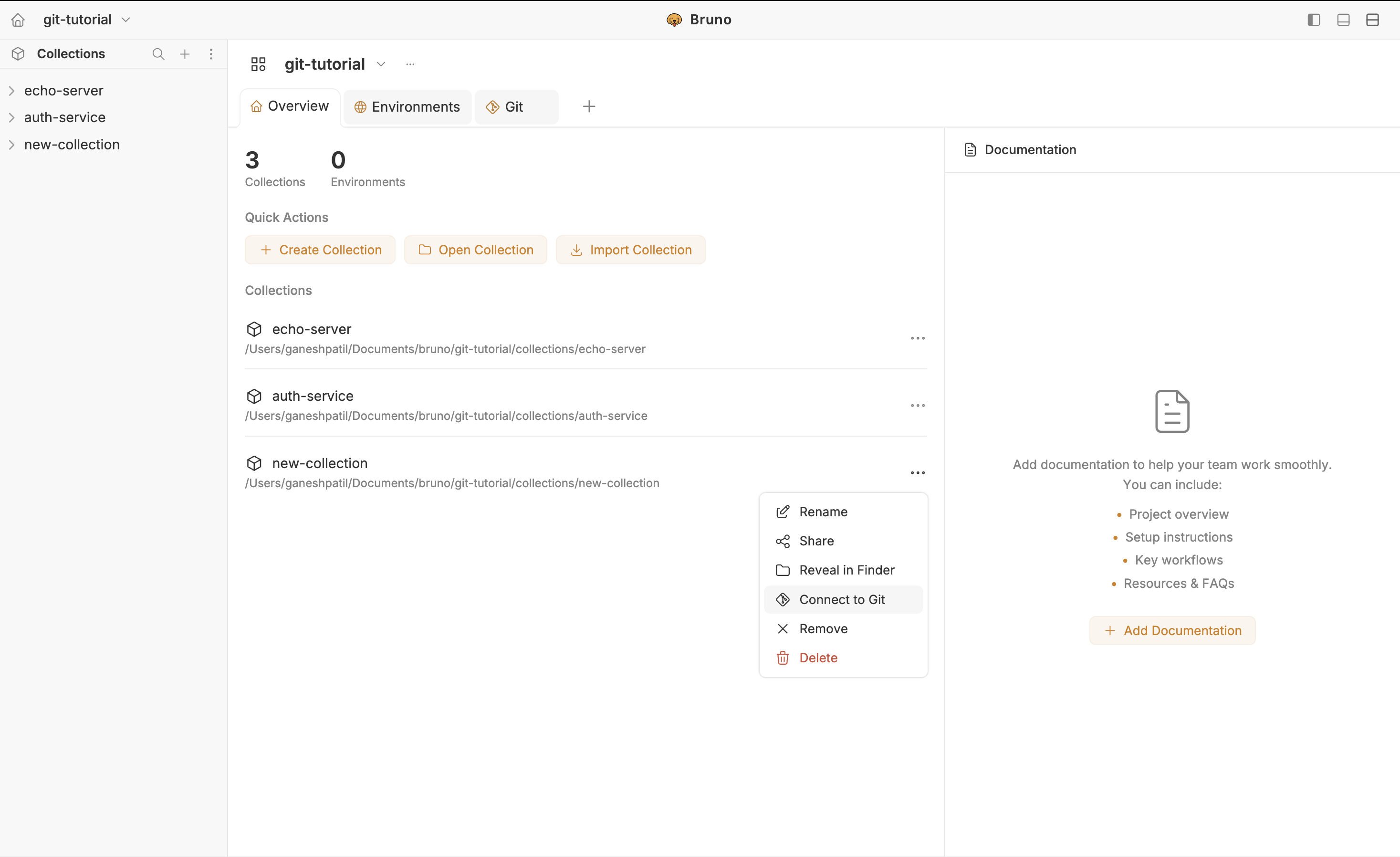
Go to workspace overview (home icon) and find the collection you want to link separately.
Click the (...) menu on that collection and select Connect to Git.
Enter the Git remote URL and click Connect. A Git icon appears next to the collection name.
Bruno updates workspace.yml with the remote URL for that collection.
workspace.yml after linking
opencollection: 1.0.0
info:
  name: "git-tutorial"
  type: workspace

collections:
  - name: "echo-server"
    path: "collections/echo-server"
  - name: "auth-service"
    path: "collections/auth-service"
  - name: "collections/new-collection"
    path: "collections/new-collection"
    remote: "https://github.com/<username>/<repository-name>.git"
Important: Once a workspace has Git initialized, you cannot run git init inside a collection folder the parent workspace Git will conflict with it. Always use Connect to Git from the workspace overview to link a collection to a separate remote.
What to expect
- When you push the workspace, all collections are tracked except the linked one. The linked collection has its own independent remote and history.
- Git history is managed separately - workspace Git panel for workspace-tracked collections, collection Git panel for the linked collection.
- New collections added to a Git-initialized workspace are automatically tracked by workspace Git. To give a new collection its own repo, use Connect to Git.
Best suited for
- Teams where most collections belong together but one or two need their own repository
- Projects that share a workspace but have a collection tied to a separate service's source code repo
- Gradually migrating collections from a shared workspace repo into independent repos
Think of it as: a shared workspace for the team, with escape hatches for collections that need their own home.
Which Strategy Should You Choose?
Use this decision flow to pick the right approach for your team:
Comparison at a glance
| Criteria | Workspace-Level | Collection-Level | Hybrid |
|---|---|---|---|
| Git repos | One | One per collection | One workspace + N linked |
| Team isolation | Low (shared history) | High (per-service repos) | Mixed |
| Onboarding | Clone one repo, open workspace | Clone each collection repo | Clone workspace + linked repos |
| Best for | Monorepos, platform teams | Microservices, service teams | Transitional or mixed ownership |
| Complexity | Lowest | Moderate (more remotes) | Highest (two Git contexts) |
Real-world examples:
Startup with one backend
Five developers, one API, collections live in the same repo as the app. Workspace-Level Git.
E-commerce platform
Auth, email, OTP, payments, and catalog each owned by different squads. Collection-Level Git.
Growing product team
Shared workspace for most APIs, but payments collection must live in the payments service repo. Hybrid.
Pick early. Switching strategies later means untangling remotes and history. Decide before your team starts pushing commits.
Sharing Collections (Provider Workflow)
The provider role covers team members who create collections, initialize Git, connect remotes, and push changes for others to consume. Full details are in the Provider guide.
Initialize Git (free)
Open the collection or workspace you want to version.
Click the Git icon in the top-right corner of the navbar.
Click Initialize. You can now view diffs, stage changes, and commit locally.
Connect to a remote (Pro / Ultimate)
After initialization, connect your collection to GitHub, GitLab, or any Git provider:
- Create a new GitHub repository from Bruno - Bruno creates the repo, sets the remote, and pushes the initial commit in one flow. Ideal if you are starting fresh.
- Connect to an existing repository - use Quick Links → Remotes → Add Remote and enter the HTTPS or SSH URL.
Review changes before committing (free)
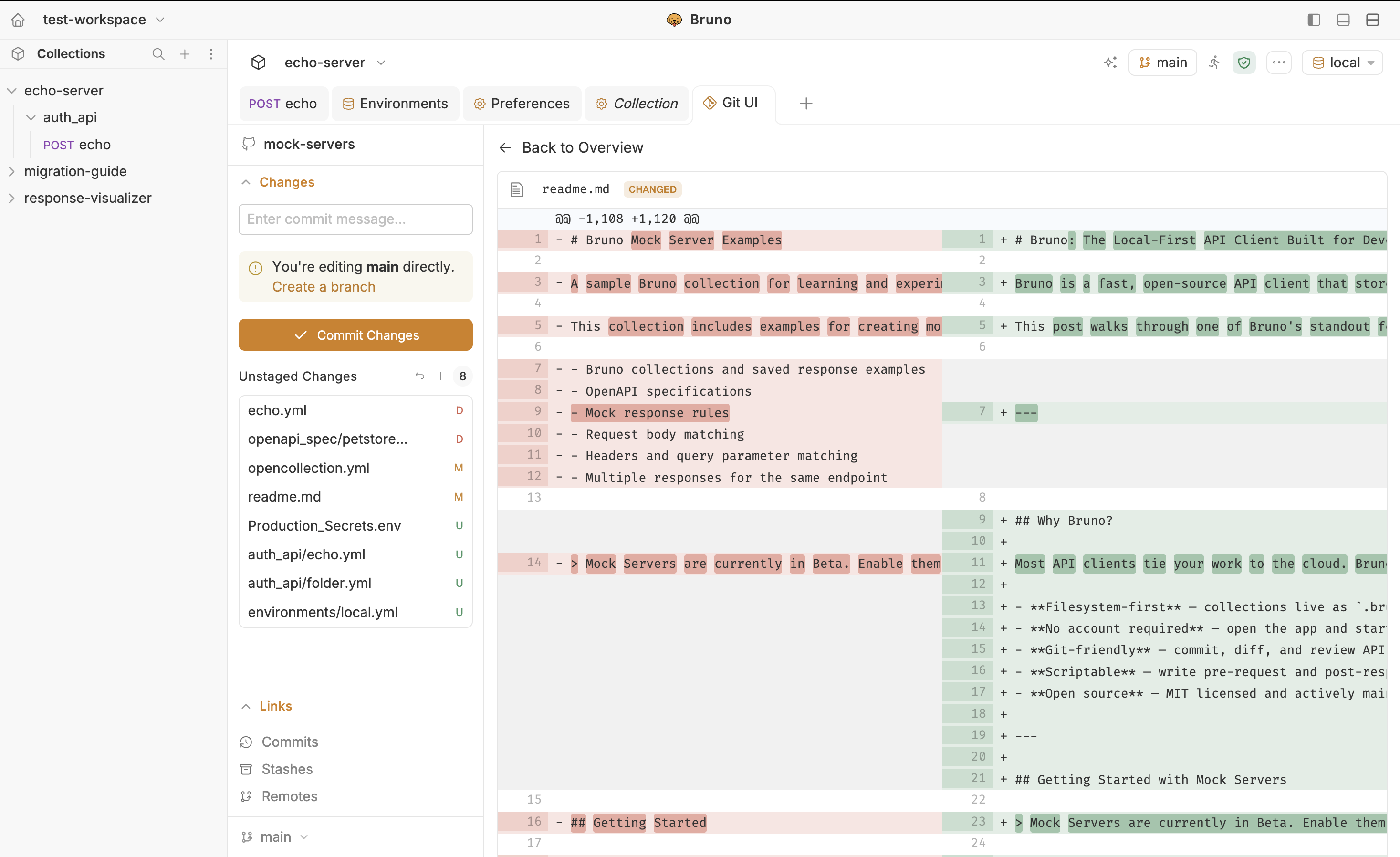
Bruno offers two diff modes in the Git UI:
- Text-Based Diff - traditional side-by-side or unified view, line by line
- Visual-Based Diff - structural view that highlights what changed in the request (URL, headers, body) at a glance
Commit and push (Pro / Ultimate for push)
Open the Git UI and click the Add icon to stage your changes (or Add All Changes to stage everything).
Click Commit Changes, write a message, and commit.
Click Fetch, then Push to send your commits to the remote.
Branches, stash, and merge conflicts (Pro / Ultimate)
- Branches - create and checkout branches from the Git UI (click the branch name in the bottom-left corner).
- Stash - temporarily save uncommitted changes when you need to switch context without committing unfinished work.
- Merge conflicts - Bruno provides a visual conflict editor where you can accept incoming, accept current, or accept both for each conflicted section.
Request-level Git history (Pro / Ultimate)
Open any request and click the History tab to see every commit that touched that request message, author, date, and hash. Click a commit to inspect the exact diff. This is especially useful during code review when you need to know who changed a URL or header and when.
Consuming Collections (Consumer Workflow)
The consumer role covers team members who clone shared collections and pull updates. All consumer features are available in the free version from Bruno 3.0.0 onward. See the Consumer guide for the full walkthrough.
Clone a collection from Git
Click Import collection from the Overview page or the + icon in the sidebar.
Select the Git Repository tab and enter the repository URL.
Click Clone and choose a location on disk.
Select the collection you want to open and click Open. It appears in your sidebar immediately.
Stay in sync with your team
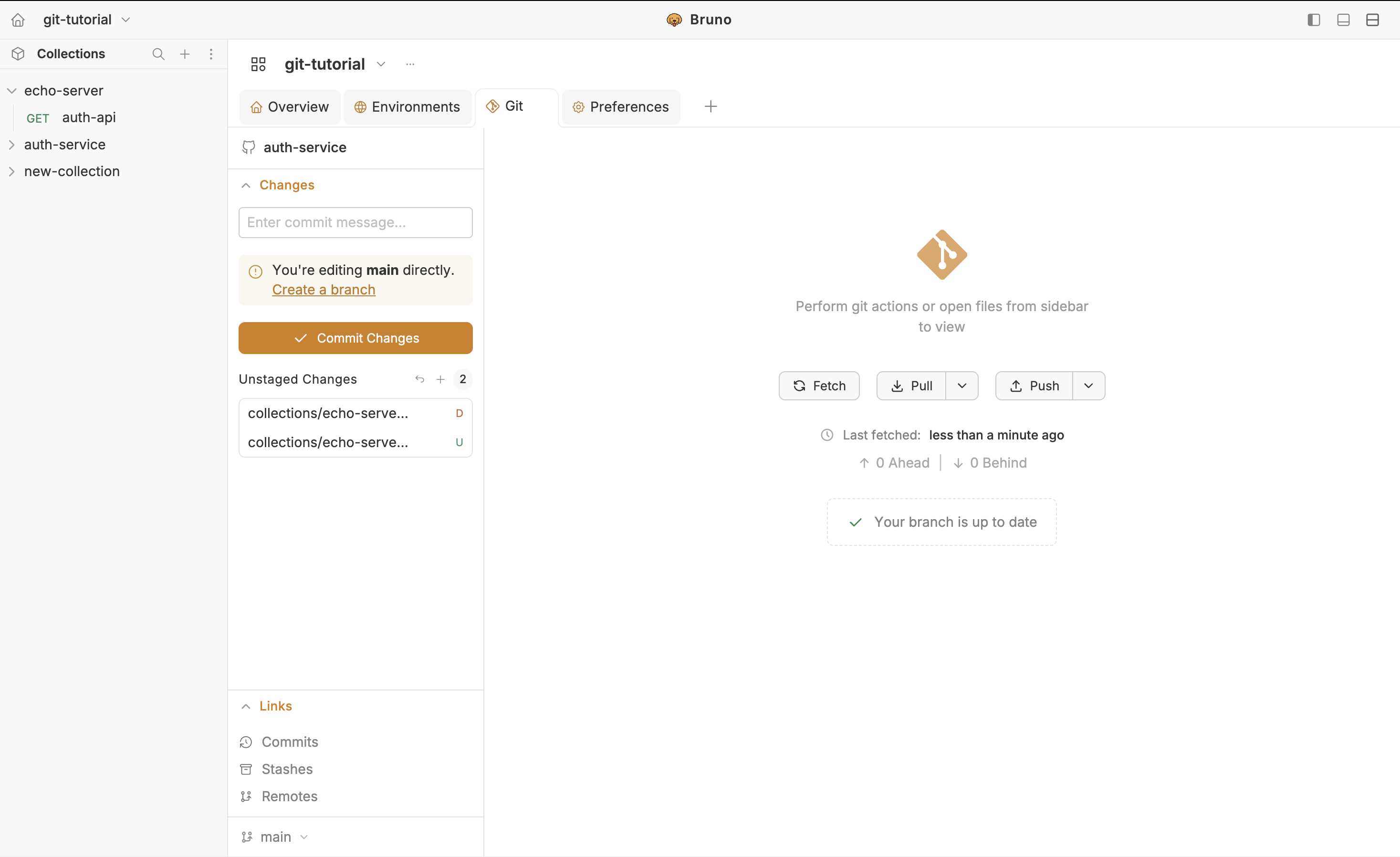
Open the Git UI and click Fetch to check for incoming changes.
Click Pull to bring the latest commits into your local collection.
If you have local uncommitted changes when pulling, Bruno may prompt you to stash them first. Stash support is available in Pro and Ultimate editions.
Provider vs consumer at a glance
Quick Reference
| Topic | Details |
|---|---|
| Git strategies | Workspace-level, collection-level, or hybrid (Connect to Git) |
| Free Git features | Initialize, diffs (text + visual), clone, fetch, pull (Bruno 3.0.0+) |
| Pro / Ultimate Git features | Remote connect, push, branches, stash, merge conflicts, request history |
| Hybrid warning | Never run git init inside a collection when workspace Git exists — use Connect to Git |
| Documentation | Git Strategies · Provider · Consumer |
| Git primer | What Is Git? A Beginner's Guide |
Wrap Up
Cloud-based API collaboration gets you started quickly, but it falls short on versioning, ownership, and keeping tests aligned with code. Bruno's Git collaboration model puts your collections where they belong: in your repository, under your control, with the same workflows your engineering team already trusts.
Choose workspace-level Git when you want one repo and one source of truth. Choose collection-level Git when each service team needs its own isolated repository. Choose the hybrid approach when most collections share a workspace but a few need their own remote. Set it up early, commit often, and let Git handle the rest.
New to Git? Start with What Is Git? A Beginner's Guide to Version Control with Git, then follow the Provider and Consumer guides to get your team collaborating in minutes.