Git can feel intimidating at first, but its core ideas are simpler than they seem. This guide explains what Git is, how it relates to GitHub, how commits, branches, and remotes work, and which beginner mistakes to avoid so new users can build a clear, practical mental model from day one.
Table of Contents
Reinventing How You Work With Files
Modern work depends on managing change well. That’s true whether you’re building APIs, writing documentation, editing design assets, or collaborating on pretty much anything across a team.
But many people still manage versions with multiplying files and filenames like:
-
proposal.docx
-
proposal_final.docx
-
proposal_final_v2.docx
-
proposal_FINAL_reallyfinal.docx
That approach quickly becomes messy and cumbersome. It becomes hard to tell which version is current, what changed, and whether you’re viewing the latest copy.
Git offers a better model: instead of constantly duplicating files, you keep one project and record meaningful checkpoints over time.
What Git Is (and What It Isn’t)
Git is a version control system. In simpler terms, that means it helps you track changes (the versions) to files over time.
The most beginner-friendly way to think about Git is this:
- A repository is your project plus its history
- A commit is a saved checkpoint with a message
- A branch is a safe line of work where you make changes tracked as versions
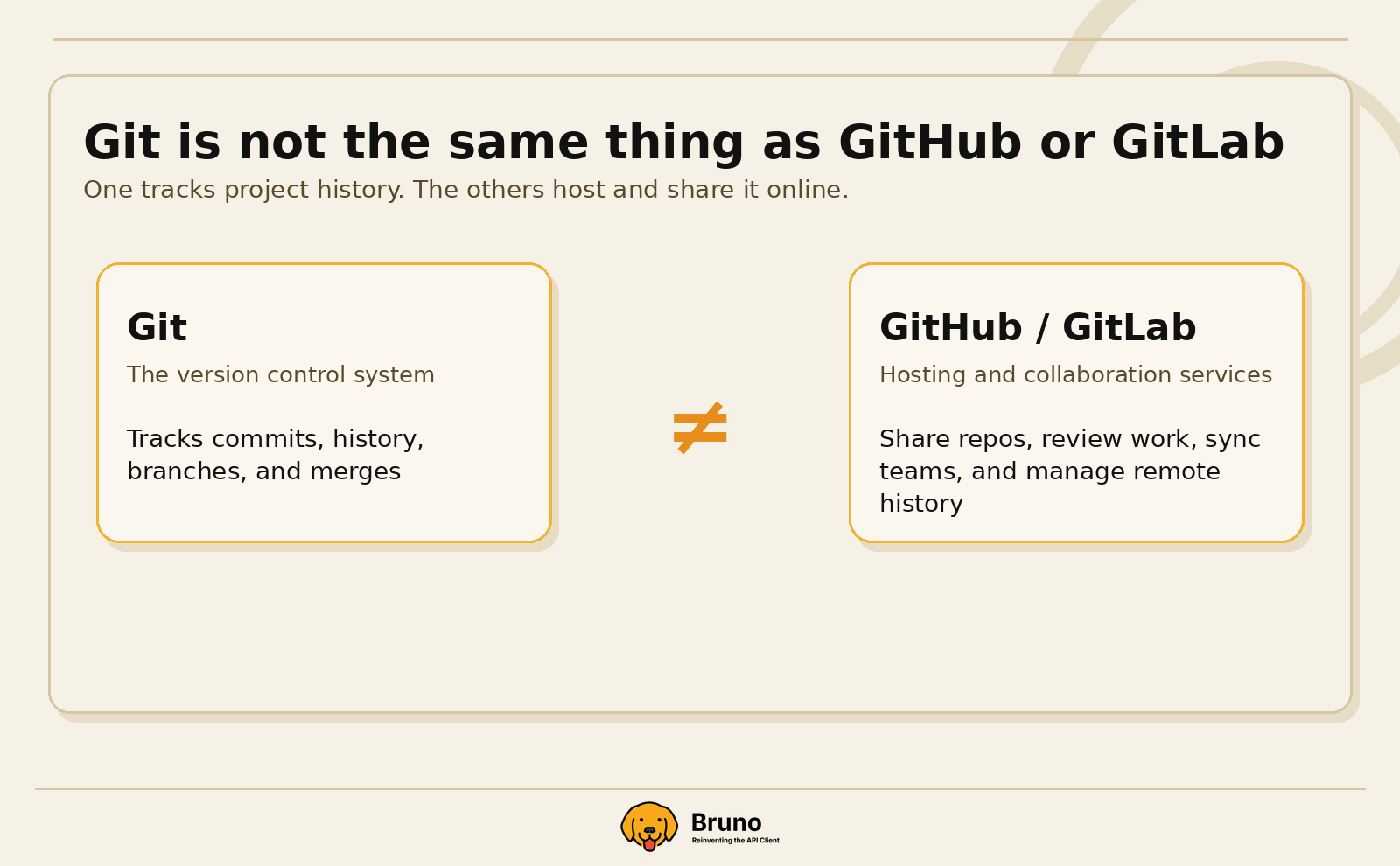
One important clarification for first-time users: Git is not the same thing as GitHub or GitLab.
- Git is the tool that tracks your project history
- GitHub/GitLab/BitBucket are services that host Git repositories online so you can share and collaborate
Another important mental model: Git works with snapshots. Each commit is not just a tiny patch floating by itself. It is a saved version of your project at that moment.
And Git does not auto-save. Until you commit, your work is not part of Git’s durable history. This allows for testing out changes you aren’t ready to submit as versions yet.
How Changes Move Through Git
One of the biggest beginner hurdles is understanding that a change can live in more than one place before it becomes part of history.
A simple way to picture Git is as three areas:
Working Files - where you edit files
Staging Area - changes ready to go into the next commit
Commit History - saved project snapshots
This is why git add matters. It’s not just a technical extra step. It is how you choose what belongs in your next commit.
A helpful analogy: the staging area is like a shopping cart of changes for your next save point. You can keep editing files in your working directory, but only the changes you stage are guaranteed to go into the next commit.
That is also why beginners sometimes feel confused after committing: they edited a file, but forgot to stage the latest version before committing it.
Working Locally, Sharing Remotely
Git is designed to work locally first. That means your machine has the project and its history, and most operations happen on your computer.
When you want to collaborate, you connect your local repository to a remote repository hosted on a service like GitHub or GitLab.
Local Repository - where you edit, stage, and commit
Remote Repository - where teams sync and share history git push git pull / git fetch
For beginners, the common core workflow is:
- Pull → bring remote changes into your local branch
- Commit → save a checkpoint locally
- Push → send your commits to the remote
- and repeat
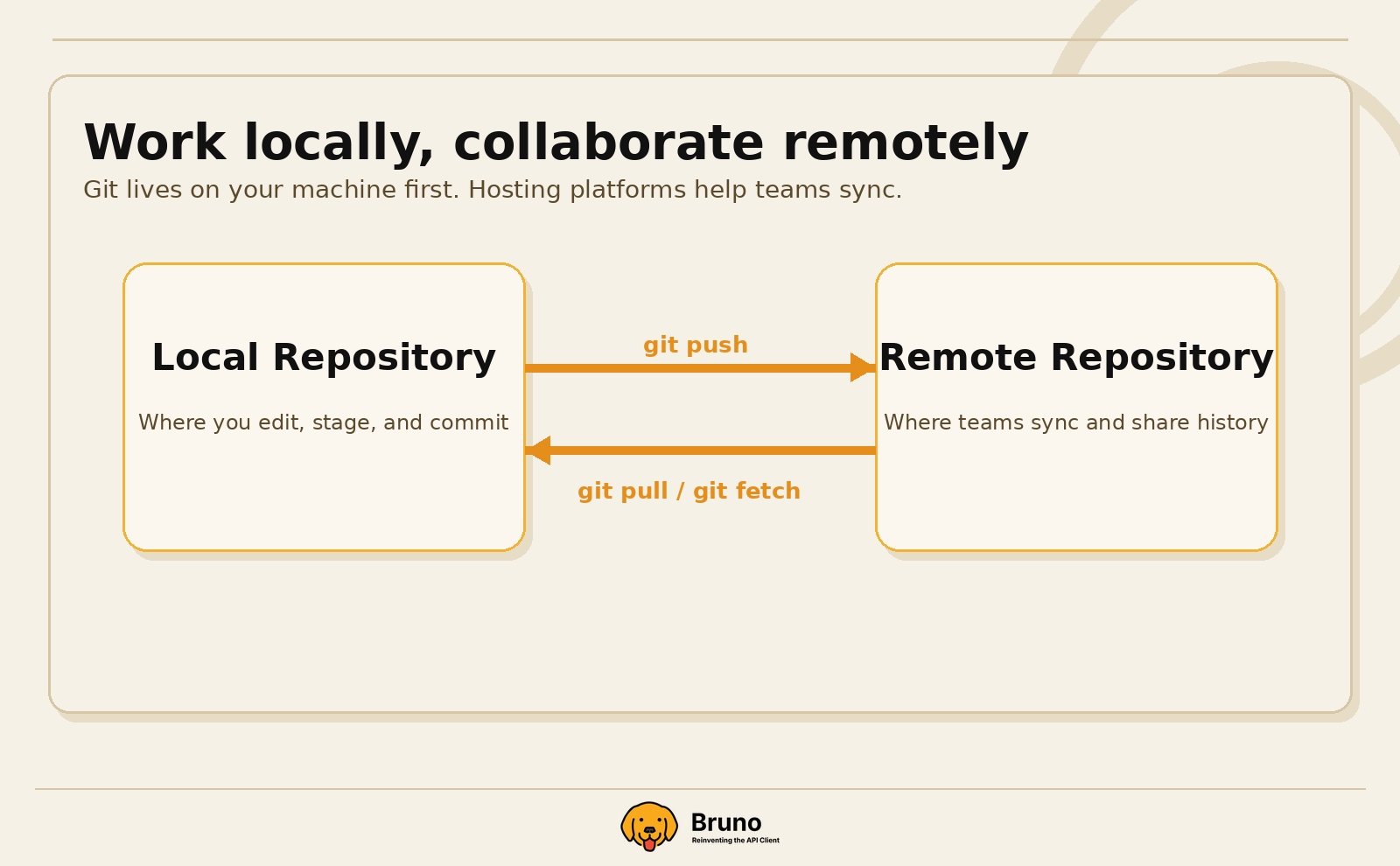
A useful nuance: git fetch is often the safer “look first” option because it downloads updates without immediately changing your current files. git pull downloads and integrates changes in one step.
That distinction matters because many beginner frustrations happen when changes on the remote and changes on the local branch have both moved forward.
If you ever see a push rejected because the remote changed first, Git is usually protecting work rather than breaking. It is likely telling you that there was a merge conflict and to sync and integrate (resolve the merge conflict) before pushing again.
Branching, Merging, and Why Conflicts Happen
Branches are one of Git’s most useful ideas.
Instead of making every change directly on the main version of a project, you can create a branch and work on a copy safely.
This makes experimentation much less risky. You can try something, commit along the way, and then merge those commits back when they are ready to be submitted as the true main version.
Conflicts arise when Git cannot automatically decide how to combine two sets of edits. Usually that means the same part of a file changed in different ways.
That sounds scary at first, but it helps to know this:
- Conflicts are normal
- They are not a sign that Git is broken
- Git is simply asking you to choose how to merge the changes into the final version
For true beginners, merge is usually the safer default to understand first. You may have heard of "rebase", but while rebase can be useful later, because it rewrites history, it can be slightly more confusing.
Common Beginner Traps
Here are some common pitfalls that often affect beginners.
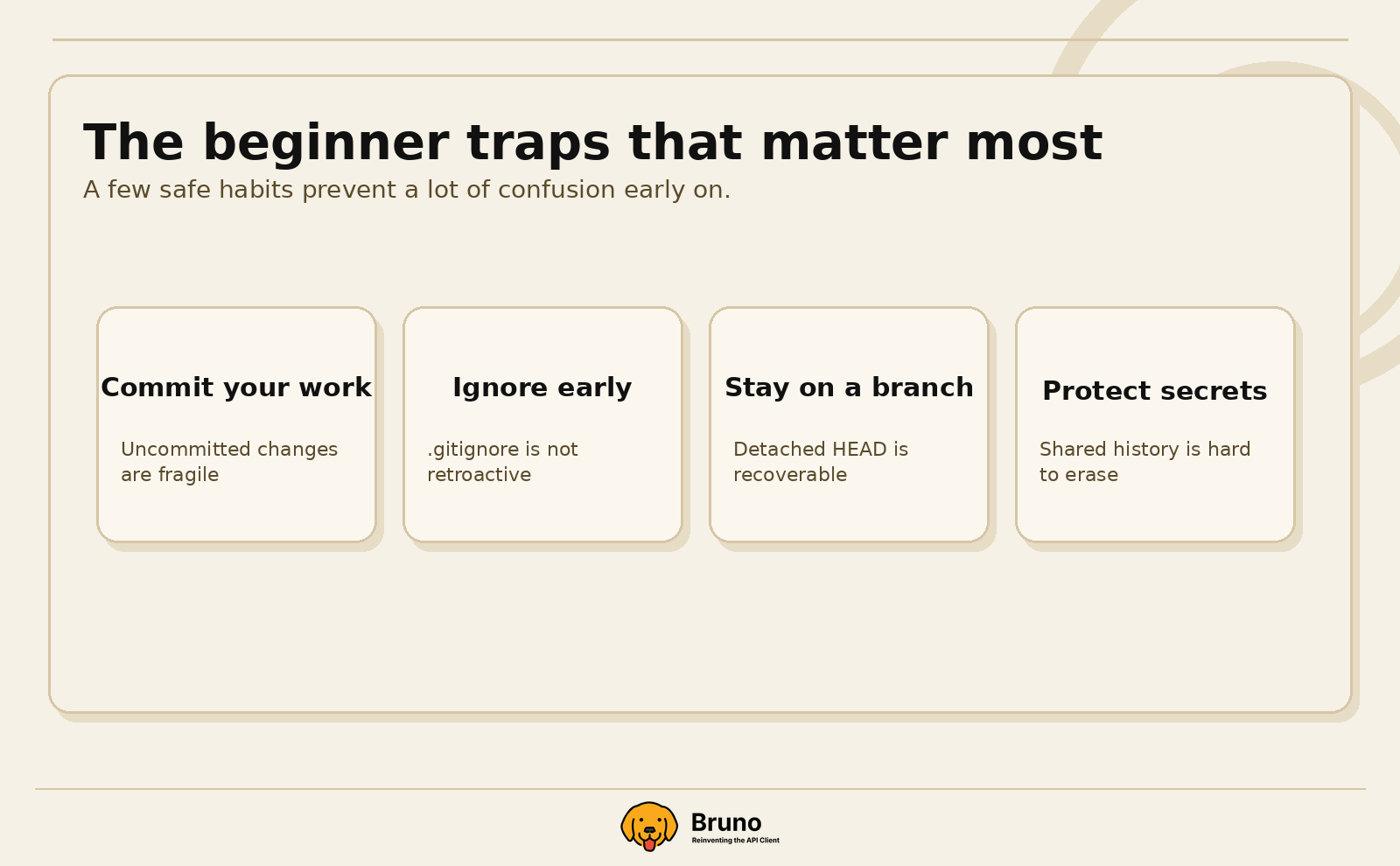
Git only tracks what you commit
Uncommitted work can still be lost. If it was never committed, it is not part of Git history.
.gitignore is not retroactive
A file already being tracked does not stop being tracked just because you add it to .gitignore later. Only the changes to that file will be ignored. So, make sure to add any secrets files to .gitignore before any changes to that file are committed.
Shared history is durable
Once a commit is pushed to a remote, removing it completely becomes much harder.
That durability is useful, because it makes collaboration and recovery possible. It also creates an important security rule:
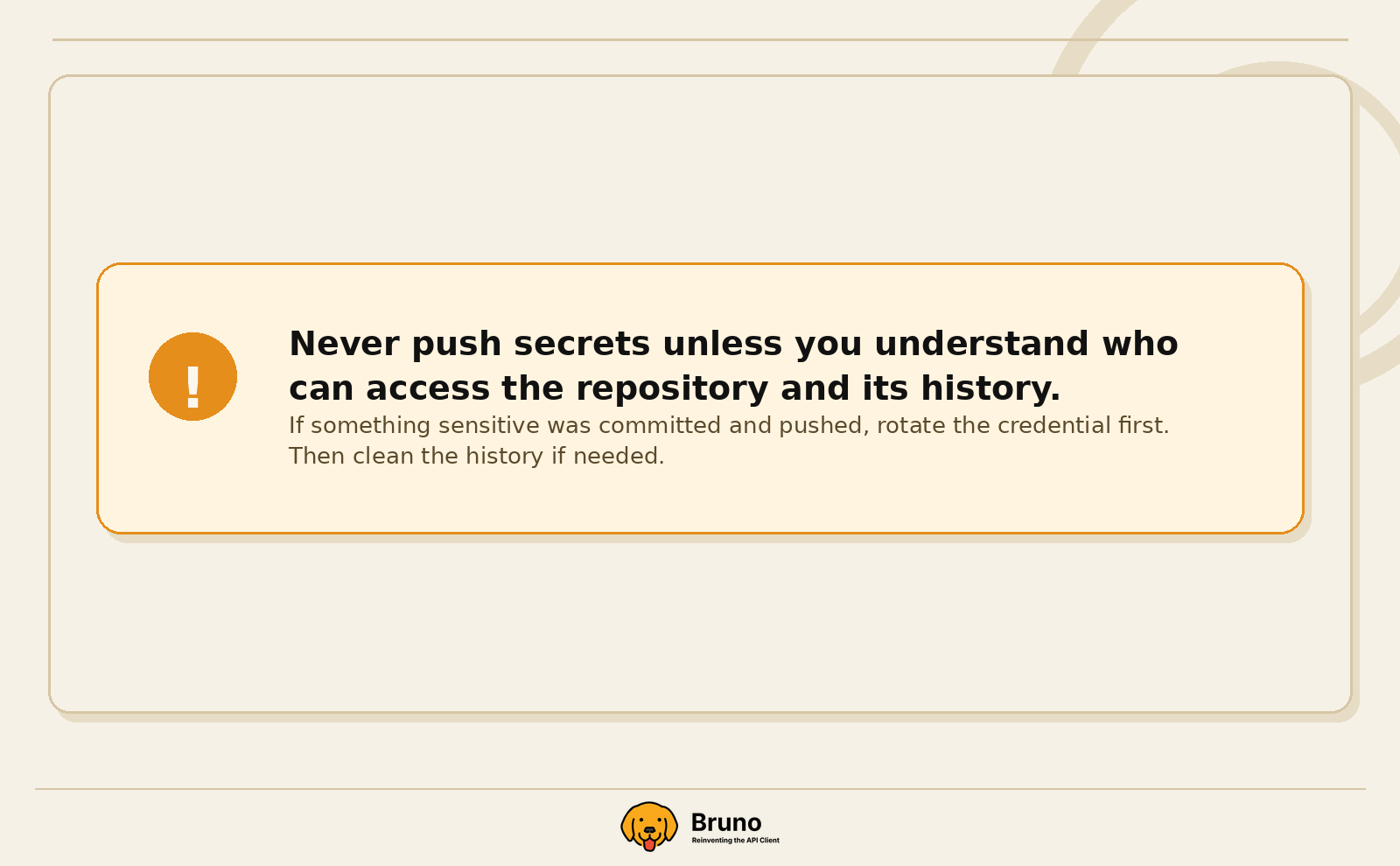
Never push secrets unless you are certain about who has access to the repository and its history.
If a token, password, or private key gets committed and pushed, the first priority is to rotate or revoke it. Cleaning history matters too, but changing the credential matters first. It’s best to take extra precaution to avoid ending up in this state.
A Simple Mental Model to Leave With
If everything above still feels like a lot, keep this version in your head:
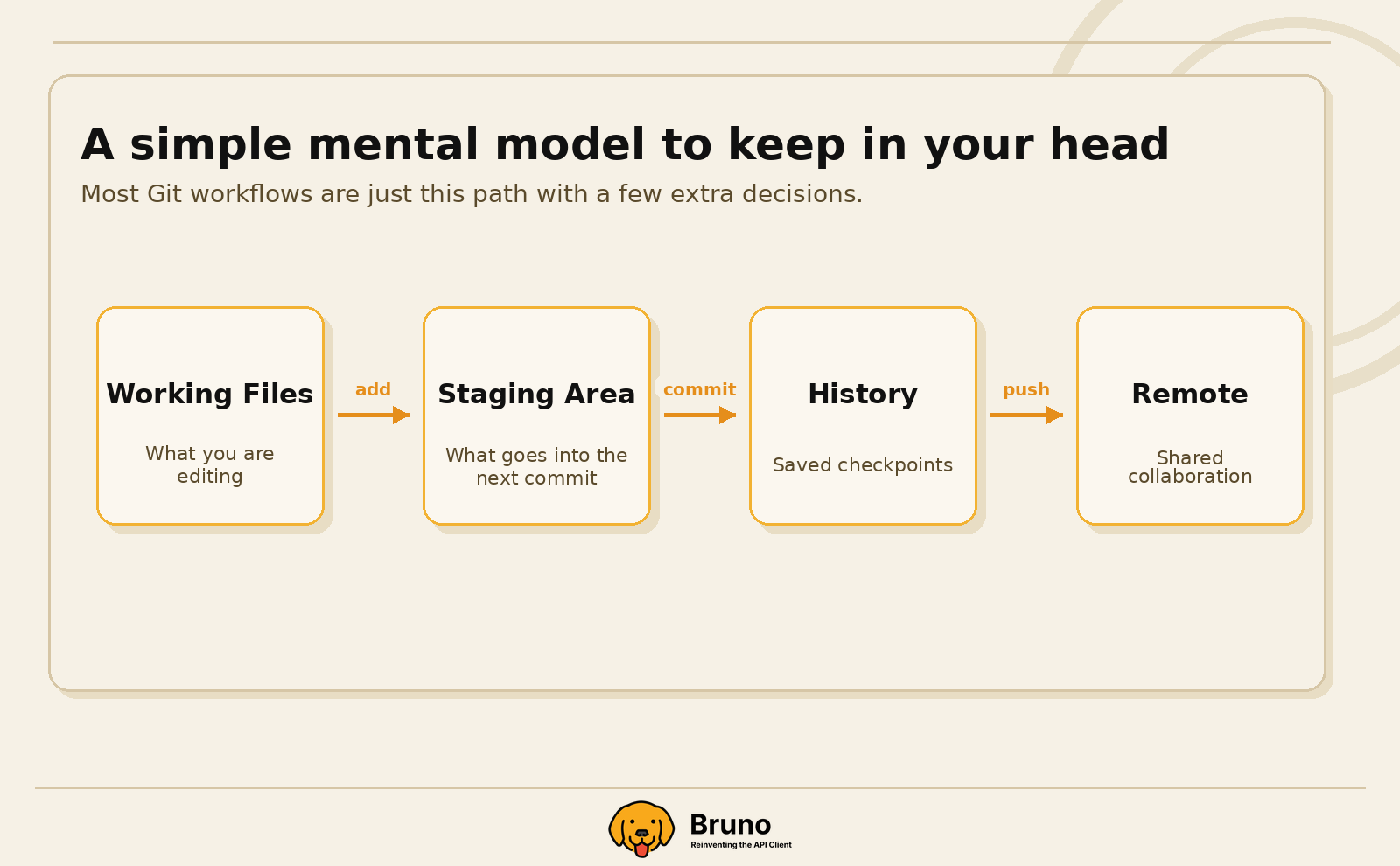
- Working files = what you are editing right now
- Staging area = what you want in the next save point
- Commit history = the saved timeline of your project
- Remote = the shared place for snapshots of your project
And for the most common actions:
- git add = choose changes to prepare (“stage”) for the next commit
- git commit = save a checkpoint
- git push = share your work
- git pull = bring shared updates into your branch
- branch = work safely in parallel
- merge = combine lines of work
Git is a system for organizing change in a way that is safer, clearer, and easier to collaborate on than simple file duplication.
You do not need to master every command to start benefiting from it. You just need the right mental model, a few safe habits, and enough repetition for the workflow to feel natural.
Your First 10 Minutes With Git
If you are brand new to Git, the fastest way to make it feel less abstract is to walk through a tiny project and see the lifecycle of a change.
Here is a simple beginner flow:
- Create a folder for a small practice project.
- Initialize Git in that folder.
- Add one file, like notes.txt or README.md.
- Stage the file.
- Commit it with a short message.
- Edit the file and repeat.
A minimal command-line version looks like this:
git init
echo "My first Git project" > README.md
git add README.md
git commit -m "Add initial README"

# Then make one small edit and save a second checkpoint:
echo "Learning how commits work" >> README.md
git add README.md
git commit -m "Update README with learning note"
At that point, you have already used the most important core ideas:
- you created a repository
- you made a change in your working files
- you staged that change
- you committed it into history
If you want to inspect what Git sees along the way, these two commands are especially helpful:
git statusshows what changed and what is stagedgit log --onelineshows your commit history in a compact format
If you are using a visual app like GitHub Desktop or through an IDE like Visual Studio Code or IntelliJ, the same concepts still apply even if the interface hides some of the commands. You are still moving changes from working files, to a staged set of changes, into commit history.
That is the key milestone for a first session with Git: not memorizing commands, but understanding the path a change takes.
Once that clicks, everything else gets easier.